
圖片與應用程式內圖示
圖片與應用程式內圖示
Compose Multiplatform for desktop 就像其他平台一樣,從 多平台資源 程式庫載入圖片。桌面應用程式也可以透過 JVM API 從檔案系統或網路讀取圖片,並將圖片用作視窗和系統匣圖示。
undefined
此頁面中的範例使用 Kotlin 和 Compose Multiplatform 標誌。這兩個標誌都包含在 Kotlin 品牌資產 套件中。
顯示來自資源的圖片
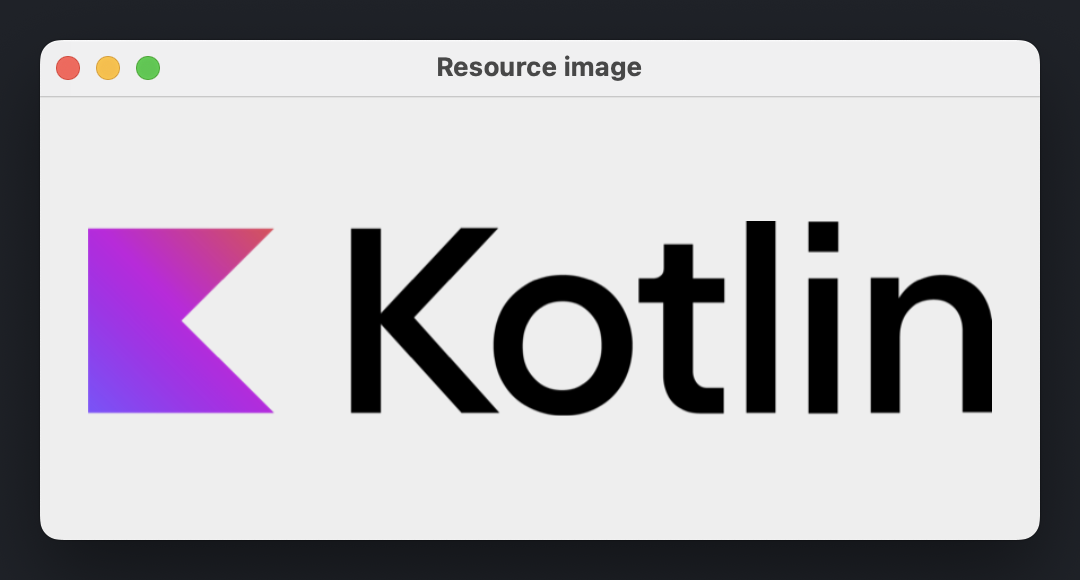
若要顯示封裝在應用程式中的圖片,請將其新增至專案的多平台資源,然後組建專案以產生資源存取子。透過將存取子傳遞給 painterResource() 來建立 Painter 執行個體,並將產生的 Painter 傳遞給 Image() Composable:
import androidx.compose.foundation.Image
import androidx.compose.foundation.layout.fillMaxSize
import androidx.compose.foundation.layout.padding
import androidx.compose.ui.Modifier
import androidx.compose.ui.unit.DpSize
import androidx.compose.ui.unit.dp
import androidx.compose.ui.window.Window
import androidx.compose.ui.window.WindowState
import androidx.compose.ui.window.application
import org.jetbrains.compose.resources.painterResource
import com.example.composeapp.generated.resources.Res
import com.example.composeapp.generated.resources.kotlin_logo

fun main() = application {
    Window(
        onCloseRequest = ::exitApplication,
        title = "Resource image",
        state = WindowState(size = DpSize(500.dp, 250.dp))
    ) {
        Image(
            painter = painterResource(Res.drawable.kotlin_logo),
            contentDescription = "Kotlin logo",
            modifier = Modifier.fillMaxSize().padding(24.dp)
        )
    }
}
painterResource() 支援點陣化圖片格式,例如 .png、.jpg、.bmp 和 .webp,以及 Android XML 向量圖格式。有關將資源作為 ImageBitmap 或 ImageVector 值存取,以及使用圖示、字型和字串的詳細資訊,請參閱在應用程式中使用多平台資源。
資源不一定要儲存在 common 原始碼集中。任何原始碼集或模組都可以使用自己的
composeResources目錄,因此您可以將桌面應用程式特有的圖片儲存在與桌面相關的程式碼旁邊。若要使用在另一個模組中宣告的資源,請將該模組產生的
Res類別設定為 public。
從檔案系統或網路載入圖片
不屬於應用程式一部分的圖片(由使用者選擇或在執行時下載的檔案)不屬於資源。請使用任何 JVM API 讀取其位元組,並使用資源程式庫的以下函式之一進行解碼:
| 圖片格式 | 解碼函式 | 結果 |
|---|---|---|
| 點陣圖 (Bitmap) | decodeToImageBitmap() | ImageBitmap |
| XML 向量圖 | decodeToImageVector() | ImageVector |
| SVG | decodeToSvgPainter() | Painter |
讀取檔案或網路回應會阻塞呼叫執行緒,因此請務必在 UI 執行緒之外執行這些操作。
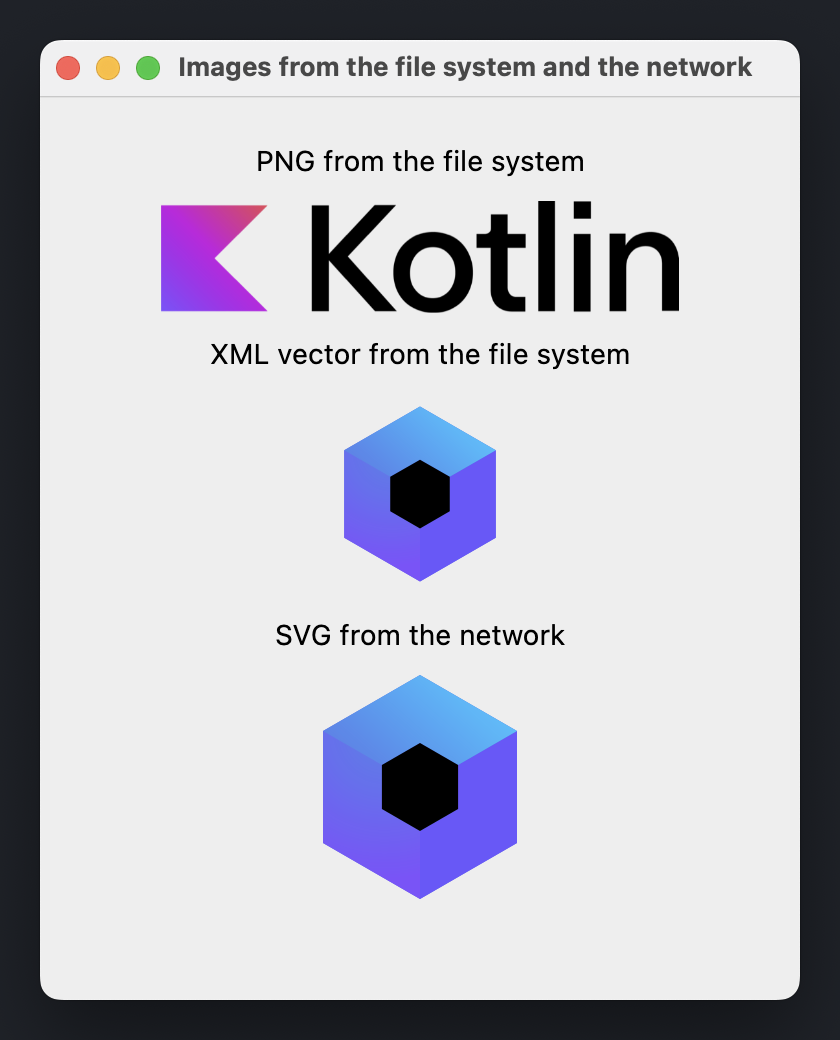
以下範例宣告了一個 AsyncImage() Composable,它在 Dispatchers.IO 上下文中載入圖片,並在圖片就緒時顯示:
import androidx.compose.foundation.Image
import androidx.compose.foundation.layout.Arrangement
import androidx.compose.foundation.layout.Column
import androidx.compose.foundation.layout.fillMaxSize
import androidx.compose.foundation.layout.padding
import androidx.compose.foundation.layout.width
import androidx.compose.material.Text
import androidx.compose.runtime.Composable
import androidx.compose.runtime.getValue
import androidx.compose.runtime.produceState
import androidx.compose.runtime.remember
import androidx.compose.ui.Alignment
import androidx.compose.ui.Modifier
import androidx.compose.ui.graphics.painter.BitmapPainter
import androidx.compose.ui.graphics.painter.Painter
import androidx.compose.ui.graphics.vector.rememberVectorPainter
import androidx.compose.ui.layout.ContentScale
import androidx.compose.ui.platform.LocalDensity
import androidx.compose.ui.unit.DpSize
import androidx.compose.ui.unit.dp
import androidx.compose.ui.window.Window
import androidx.compose.ui.window.WindowState
import androidx.compose.ui.window.application
import kotlinx.coroutines.Dispatchers
import kotlinx.coroutines.withContext
import org.jetbrains.compose.resources.decodeToImageBitmap
import org.jetbrains.compose.resources.decodeToImageVector
import org.jetbrains.compose.resources.decodeToSvgPainter
import java.io.File
import java.io.IOException
import java.net.URI

fun main() = application {
    val density = LocalDensity.current
    Window(
        onCloseRequest = ::exitApplication,
        title = "Images from the file system and the network",
        state = WindowState(size = DpSize(380.dp, 480.dp))
    ) {
        Column(
            modifier = Modifier.fillMaxSize().padding(24.dp),
            verticalArrangement = Arrangement.spacedBy(12.dp),
            horizontalAlignment = Alignment.CenterHorizontally
        ) {
            Text("PNG from the file system")
            AsyncImage(
                load = { File("kotlin-logo.png").readBytes().decodeToImageBitmap() },
                painterFor = { remember { BitmapPainter(it) } },
                contentDescription = "Kotlin logo",
                modifier = Modifier.width(260.dp)
            )
            Text("XML vector from the file system")
            AsyncImage(
                load = { File("compose-logo.xml").readBytes().decodeToImageVector(density) },
                painterFor = { rememberVectorPainter(it) },
                contentDescription = "Compose Multiplatform logo",
                contentScale = ContentScale.FillWidth,
                modifier = Modifier.width(100.dp)
            )
            Text("SVG from the network")
            AsyncImage(
                load = { loadBytes(COMPOSE_LOGO_URL).decodeToSvgPainter(density) },
                painterFor = { it },
                contentDescription = "Compose Multiplatform logo",
                contentScale = ContentScale.FillWidth,
                modifier = Modifier.width(100.dp)
            )
        }
    }
}

private const val COMPOSE_LOGO_URL =
    "https://github.com/JetBrains/compose-multiplatform/raw/master/artwork/compose-logo.svg"

fun loadBytes(url: String): ByteArray =
    URI(url).toURL().openStream().use { it.readBytes() }

@Composable
fun <T> AsyncImage(
    load: suspend () -> T,
    painterFor: @Composable (T) -> Painter,
    contentDescription: String,
    modifier: Modifier = Modifier,
    contentScale: ContentScale = ContentScale.Fit
) {
    val image: T? by produceState<T?>(null) {
        value = withContext(Dispatchers.IO) {
            try {
                load()
            } catch (e: IOException) {
                // Instead of printing to the console, you can log the error
                // or show a placeholder image.
                e.printStackTrace()
                null
            }
        }
    }

    if (image != null) {
        Image(
            painter = painterFor(image!!),
            contentDescription = contentDescription,
            contentScale = contentScale,
            modifier = modifier
        )
    }
}
範例中的檔案路徑是相對於應用程式的工作目錄解析的。
您可以使用專用的圖片載入程式庫,而不是手動載入遠端圖片。
設定視窗圖示
若要將圖片用作視窗圖示,請將 Painter 執行個體作為 icon 參數傳遞給 Window() Composable:
import androidx.compose.foundation.layout.Box
import androidx.compose.foundation.layout.fillMaxSize
import androidx.compose.ui.Modifier
import androidx.compose.ui.draw.paint
import androidx.compose.ui.layout.ContentScale
import androidx.compose.ui.unit.DpSize
import androidx.compose.ui.unit.dp
import androidx.compose.ui.window.Window
import androidx.compose.ui.window.WindowState
import androidx.compose.ui.window.application
import org.jetbrains.compose.resources.painterResource
import com.example.composeapp.generated.resources.Res
import com.example.composeapp.generated.resources.compose_logo

fun main() = application {
    val icon = painterResource(Res.drawable.compose_logo)

    Window(
        onCloseRequest = ::exitApplication,
        title = "Window icon",
        icon = icon,
        state = WindowState(size = DpSize(400.dp, 300.dp))
    ) {
        Box(Modifier.fillMaxSize().paint(icon, contentScale = ContentScale.Fit))
    }
}
圖示的位置取決於作業系統:
- 在 Windows 和 Linux 上,它是視窗及其工作列項目的圖示。
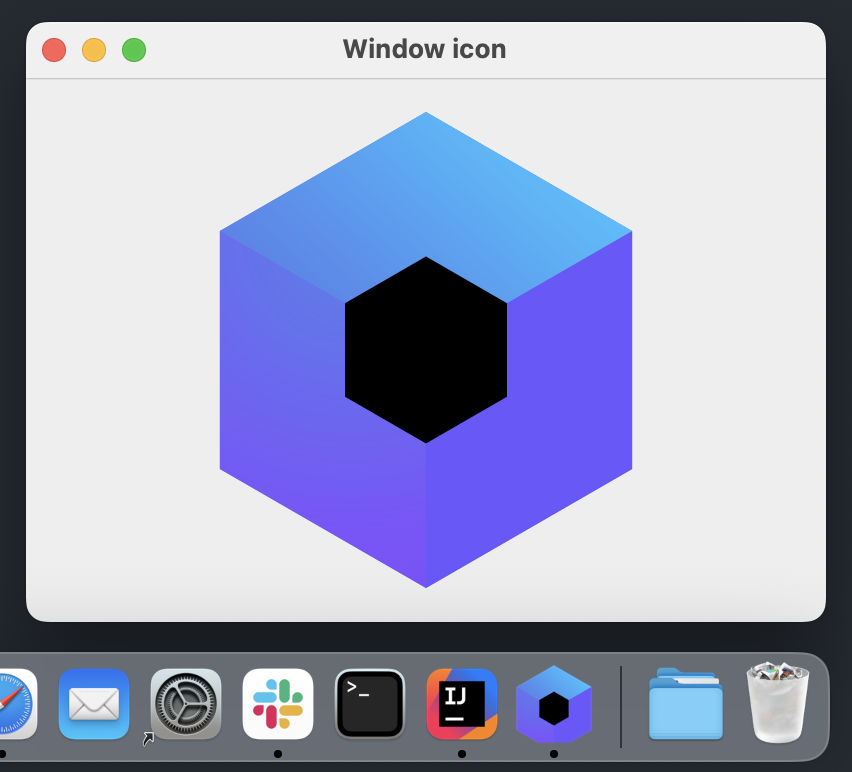
- 在 macOS 上,應用程式圖示來自應用程式套件 (application bundle)。若要更改 Dock 中的圖示,請在發行配置中進行設定。
以下螢幕截圖顯示了 macOS 上封裝後的應用程式。視窗顯示傳遞給 icon 參數的相同圖片,而 Dock 圖示則來自發行配置中宣告的 .icns 檔案:
單視窗應用程式圖示
singleWindowApplication() 函式在其組合 (composition) 之外評估其 icon 參數,此時 painterResource() 無法使用。相反地,請使用 Res.readBytes() 讀取資源,它接受 composeResources 目錄內的檔案路徑,並將其解碼為 BitmapPainter:
import androidx.compose.material.Text
import androidx.compose.ui.graphics.painter.BitmapPainter
import androidx.compose.ui.window.singleWindowApplication
import kotlinx.coroutines.runBlocking
import org.jetbrains.compose.resources.decodeToImageBitmap
import com.example.composeapp.generated.resources.Res

fun main() {
    val iconBytes = runBlocking { Res.readBytes("drawable/kotlin-logo.png") }
    val icon = BitmapPainter(iconBytes.decodeToImageBitmap())

    singleWindowApplication(icon = icon, title = "Single window icon") {
        Text("Hello, World!")
    }
}
設定系統匣圖示
若要將圖片用作 系統匣 圖示,請將 Painter 執行個體作為 icon 參數傳遞給 Tray() Composable:
import androidx.compose.foundation.Image
import androidx.compose.foundation.layout.Box
import androidx.compose.foundation.layout.fillMaxSize
import androidx.compose.foundation.layout.padding
import androidx.compose.ui.Modifier
import androidx.compose.ui.unit.DpSize
import androidx.compose.ui.unit.dp
import androidx.compose.ui.window.Tray
import androidx.compose.ui.window.Window
import androidx.compose.ui.window.WindowState
import androidx.compose.ui.window.application
import com.example.composeapp.generated.resources.Res
import com.example.composeapp.generated.resources.compose_logo
import org.jetbrains.compose.resources.painterResource

fun main() = application {
  val icon = painterResource(Res.drawable.compose_logo)

  Tray(
    icon = icon,
    tooltip = "Compose Multiplatform",
    menu = {
      Item("Exit", onClick = ::exitApplication)
    }
  )

  Window(
    onCloseRequest = ::exitApplication,
    title = "Tray icon",
    icon = icon,
    state = WindowState(size = DpSize(400.dp, 300.dp))
  ) {
    Box(modifier = Modifier.fillMaxSize().padding(24.dp)) {
      Image(
        painter = icon,
        contentDescription = "Compose Multiplatform logo",
        modifier = Modifier.fillMaxSize()
      )
    }
  }
}
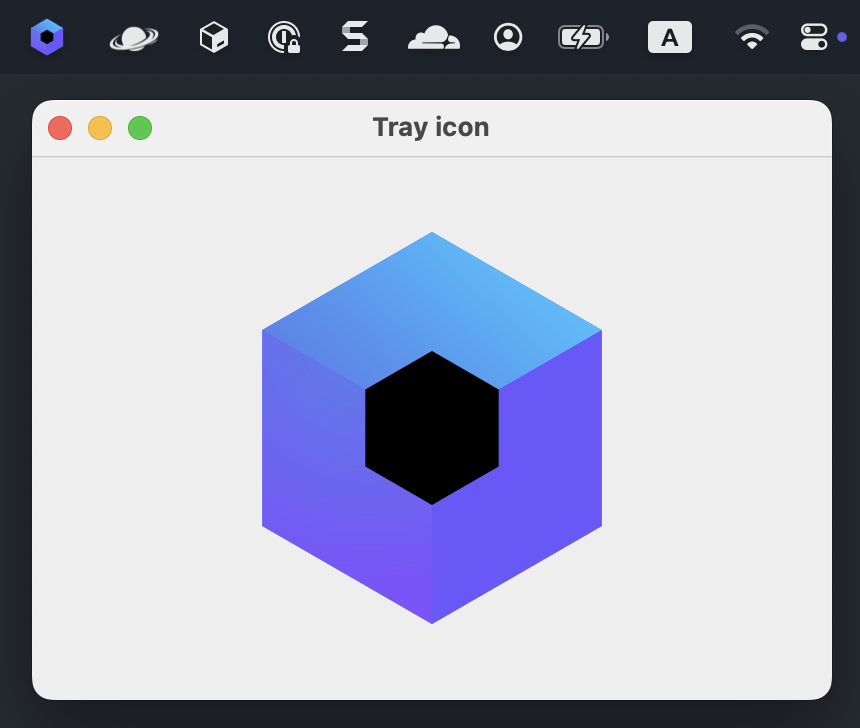
在 macOS 上,系統匣圖示出現在選單列中:
下一步
- 進一步了解多平台資源以及如何在 common 程式碼中存取它們。
- 了解如何將應用程式圖示新增至系統匣。
- 了解如何使用平台專屬的應用程式圖示建立原生發行版本。
- 探索關於其他桌面元件的教學。