
图像与应用内图标
图像与应用内图标
与其它平台一样,Compose Multiplatform 桌面端从多平台资源库加载图像。桌面应用程序还可以通过 JVM API 从文件系统或网络读取图像,并将图像用作窗口和托盘图标。
此页面上的示例使用了 Kotlin 和 Compose Multiplatform 的徽标。这两个徽标都可以作为 Kotlin 品牌资产包的一部分获取。
显示来自资源的图像
要显示随应用程序打包的图像,请将其添加到项目的多平台资源中,并构建项目以生成资源访问器。通过将访问器传递给 painterResource() 来创建 Painter 实例,并将生成的 Painter 传递给 Image() 可组合项:
import androidx.compose.foundation.Image
import androidx.compose.foundation.layout.fillMaxSize
import androidx.compose.foundation.layout.padding
import androidx.compose.ui.Modifier
import androidx.compose.ui.unit.DpSize
import androidx.compose.ui.unit.dp
import androidx.compose.ui.window.Window
import androidx.compose.ui.window.WindowState
import androidx.compose.ui.window.application
import org.jetbrains.compose.resources.painterResource
import com.example.composeapp.generated.resources.Res
import com.example.composeapp.generated.resources.kotlin_logo

fun main() = application {
    Window(
        onCloseRequest = ::exitApplication,
        title = "Resource image",
        state = WindowState(size = DpSize(500.dp, 250.dp))
    ) {
        Image(
            painter = painterResource(Res.drawable.kotlin_logo),
            contentDescription = "Kotlin logo",
            modifier = Modifier.fillMaxSize().padding(24.dp)
        )
    }
}
painterResource() 支持光栅化图像格式,例如 .png、.jpg、.bmp 和 .webp,以及 Android XML 矢量可绘制对象格式。有关将资源作为 ImageBitmap 或 ImageVector 值进行访问,以及有关使用图标、字体和字符串的详细信息,请参阅在应用中使用多平台资源。
资源不必存储在公共源集(common source set)中。任何源集或模块都可以使用其自己的
composeResources目录,因此你可以将桌面应用程序特定的图像与桌面相关的代码存储在一起。要使用在另一个模块中声明的资源,请将该模块生成的
Res类设为 public。
从文件系统或网络加载图像
不属于应用程序一部分的图像(由用户选择或在运行时下载的文件)不是资源。请使用任何 JVM API 读取它们的字节,并使用资源库的以下函数之一对它们进行解码:
| 图像格式 | 解码函数 | 结果 |
|---|---|---|
| 位图 | decodeToImageBitmap() | ImageBitmap |
| XML 矢量 | decodeToImageVector() | ImageVector |
| SVG | decodeToSvgPainter() | Painter |
读取文件或网络响应会阻塞调用线程,因此请务必在 UI 线程之外执行这些操作。
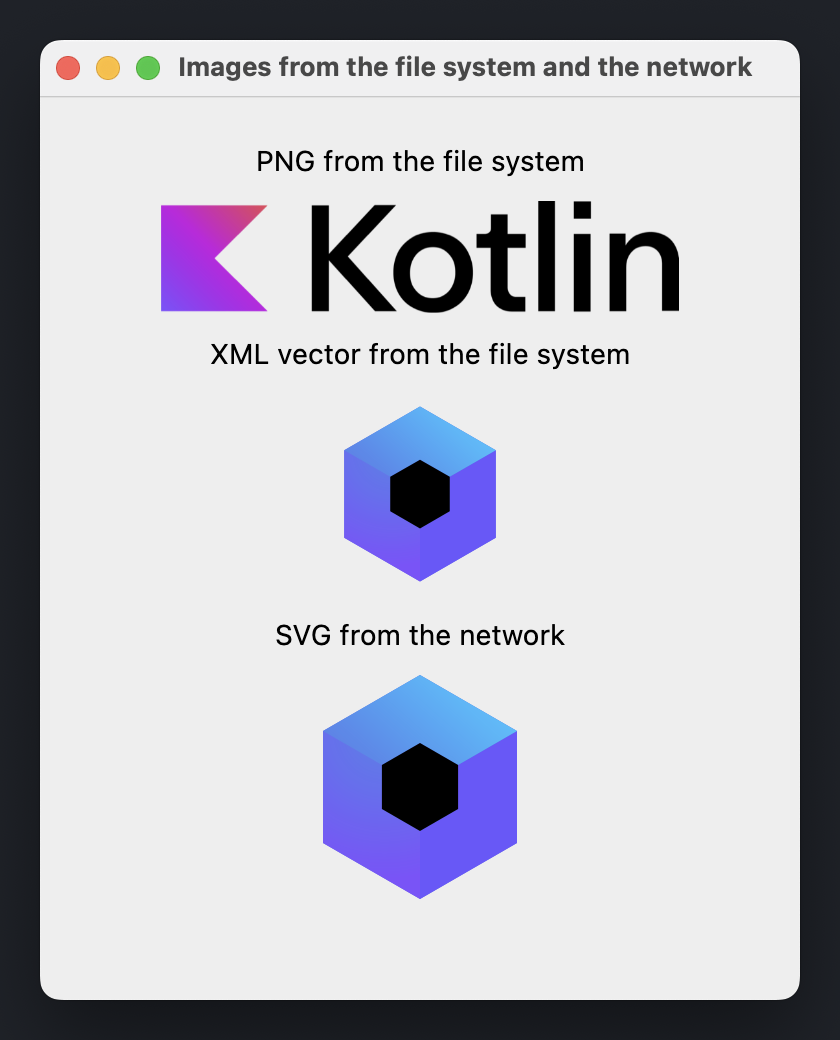
以下示例声明了一个 AsyncImage() 可组合项,它在 Dispatchers.IO 上下文中加载图像,并在准备就绪时显示图像:
import androidx.compose.foundation.Image
import androidx.compose.foundation.layout.Arrangement
import androidx.compose.foundation.layout.Column
import androidx.compose.foundation.layout.fillMaxSize
import androidx.compose.foundation.layout.padding
import androidx.compose.foundation.layout.width
import androidx.compose.material.Text
import androidx.compose.runtime.Composable
import androidx.compose.runtime.getValue
import androidx.compose.runtime.produceState
import androidx.compose.runtime.remember
import androidx.compose.ui.Alignment
import androidx.compose.ui.Modifier
import androidx.compose.ui.graphics.painter.BitmapPainter
import androidx.compose.ui.graphics.painter.Painter
import androidx.compose.ui.graphics.vector.rememberVectorPainter
import androidx.compose.ui.layout.ContentScale
import androidx.compose.ui.platform.LocalDensity
import androidx.compose.ui.unit.DpSize
import androidx.compose.ui.unit.dp
import androidx.compose.ui.window.Window
import androidx.compose.ui.window.WindowState
import androidx.compose.ui.window.application
import kotlinx.coroutines.Dispatchers
import kotlinx.coroutines.withContext
import org.jetbrains.compose.resources.decodeToImageBitmap
import org.jetbrains.compose.resources.decodeToImageVector
import org.jetbrains.compose.resources.decodeToSvgPainter
import java.io.File
import java.io.IOException
import java.net.URI

fun main() = application {
    val density = LocalDensity.current
    Window(
        onCloseRequest = ::exitApplication,
        title = "Images from the file system and the network",
        state = WindowState(size = DpSize(380.dp, 480.dp))
    ) {
        Column(
            modifier = Modifier.fillMaxSize().padding(24.dp),
            verticalArrangement = Arrangement.spacedBy(12.dp),
            horizontalAlignment = Alignment.CenterHorizontally
        ) {
            Text("PNG from the file system")
            AsyncImage(
                load = { File("kotlin-logo.png").readBytes().decodeToImageBitmap() },
                painterFor = { remember { BitmapPainter(it) } },
                contentDescription = "Kotlin logo",
                modifier = Modifier.width(260.dp)
            )
            Text("XML vector from the file system")
            AsyncImage(
                load = { File("compose-logo.xml").readBytes().decodeToImageVector(density) },
                painterFor = { rememberVectorPainter(it) },
                contentDescription = "Compose Multiplatform logo",
                contentScale = ContentScale.FillWidth,
                modifier = Modifier.width(100.dp)
            )
            Text("SVG from the network")
            AsyncImage(
                load = { loadBytes(COMPOSE_LOGO_URL).decodeToSvgPainter(density) },
                painterFor = { it },
                contentDescription = "Compose Multiplatform logo",
                contentScale = ContentScale.FillWidth,
                modifier = Modifier.width(100.dp)
            )
        }
    }
}

private const val COMPOSE_LOGO_URL =
    "https://github.com/JetBrains/compose-multiplatform/raw/master/artwork/compose-logo.svg"

fun loadBytes(url: String): ByteArray =
    URI(url).toURL().openStream().use { it.readBytes() }

@Composable
fun <T> AsyncImage(
    load: suspend () -> T,
    painterFor: @Composable (T) -> Painter,
    contentDescription: String,
    modifier: Modifier = Modifier,
    contentScale: ContentScale = ContentScale.Fit
) {
    val image: T? by produceState<T?>(null) {
        value = withContext(Dispatchers.IO) {
            try {
                load()
            } catch (e: IOException) {
                // Instead of printing to the console, you can log the error
                // or show a placeholder image.
                e.printStackTrace()
                null
            }
        }
    }

    if (image != null) {
        Image(
            painter = painterFor(image!!),
            contentDescription = contentDescription,
            contentScale = contentScale,
            modifier = modifier
        )
    }
}
示例中的文件路径是相对于应用程序的工作目录进行解析的。
除了手动加载远程图像外,你还可以使用专用的图像加载库。
设置窗口图标
要将图像用作窗口图标,请将 Painter 实例作为 icon 参数传递给 Window() 可组合项:
import androidx.compose.foundation.layout.Box
import androidx.compose.foundation.layout.fillMaxSize
import androidx.compose.ui.Modifier
import androidx.compose.ui.draw.paint
import androidx.compose.ui.layout.ContentScale
import androidx.compose.ui.unit.DpSize
import androidx.compose.ui.unit.dp
import androidx.compose.ui.window.Window
import androidx.compose.ui.window.WindowState
import androidx.compose.ui.window.application
import org.jetbrains.compose.resources.painterResource
import com.example.composeapp.generated.resources.Res
import com.example.composeapp.generated.resources.compose_logo

fun main() = application {
    val icon = painterResource(Res.drawable.compose_logo)

    Window(
        onCloseRequest = ::exitApplication,
        title = "Window icon",
        icon = icon,
        state = WindowState(size = DpSize(400.dp, 300.dp))
    ) {
        Box(Modifier.fillMaxSize().paint(icon, contentScale = ContentScale.Fit))
    }
}
图标的位置取决于操作系统:
- 在 Windows 和 Linux 上,它是窗口及其任务栏条目的图标。
- 在 macOS 上,应用程序图标来自应用程序包 (application bundle)。要更改 Dock 中的图标,请在分发配置中进行设置。
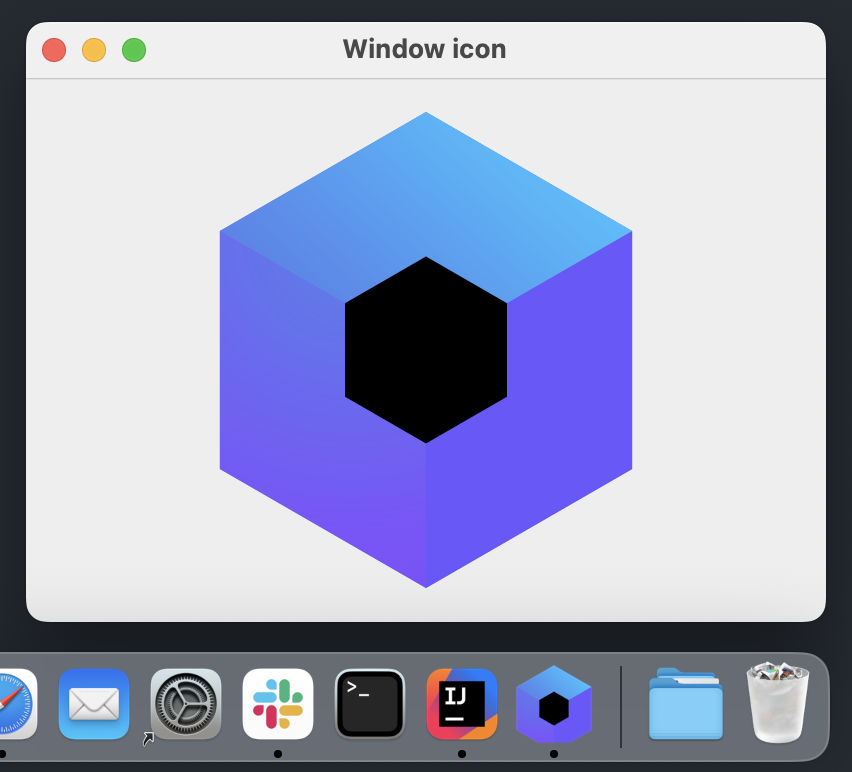
以下屏幕截图显示了 macOS 上打包后的应用程序。窗口显示传递给 icon 参数的相同图像,而 Dock 图标来自在分发配置中声明的 .icns 文件:
单窗口应用程序图标
singleWindowApplication() 函数在组合 (composition) 之外评估其 icon 参数,此时 painterResource() 不可用。相反,应使用 Res.readBytes() 读取资源,它接收 composeResources 目录下的文件路径,并将其解码为 BitmapPainter:
import androidx.compose.material.Text
import androidx.compose.ui.graphics.painter.BitmapPainter
import androidx.compose.ui.window.singleWindowApplication
import kotlinx.coroutines.runBlocking
import org.jetbrains.compose.resources.decodeToImageBitmap
import com.example.composeapp.generated.resources.Res

fun main() {
    val iconBytes = runBlocking { Res.readBytes("drawable/kotlin-logo.png") }
    val icon = BitmapPainter(iconBytes.decodeToImageBitmap())

    singleWindowApplication(icon = icon, title = "Single window icon") {
        Text("Hello, World!")
    }
}
设置托盘图标
要将图像用作托盘图标,请将 Painter 实例作为 icon 参数传递给 Tray() 可组合项:
import androidx.compose.foundation.Image
import androidx.compose.foundation.layout.Box
import androidx.compose.foundation.layout.fillMaxSize
import androidx.compose.foundation.layout.padding
import androidx.compose.ui.Modifier
import androidx.compose.ui.unit.DpSize
import androidx.compose.ui.unit.dp
import androidx.compose.ui.window.Tray
import androidx.compose.ui.window.Window
import androidx.compose.ui.window.WindowState
import androidx.compose.ui.window.application
import com.example.composeapp.generated.resources.Res
import com.example.composeapp.generated.resources.compose_logo
import org.jetbrains.compose.resources.painterResource

fun main() = application {
  val icon = painterResource(Res.drawable.compose_logo)

  Tray(
    icon = icon,
    tooltip = "Compose Multiplatform",
    menu = {
      Item("Exit", onClick = ::exitApplication)
    }
  )

  Window(
    onCloseRequest = ::exitApplication,
    title = "Tray icon",
    icon = icon,
    state = WindowState(size = DpSize(400.dp, 300.dp))
  ) {
    Box(modifier = Modifier.fillMaxSize().padding(24.dp)) {
      Image(
        painter = icon,
        contentDescription = "Compose Multiplatform logo",
        modifier = Modifier.fillMaxSize()
      )
    }
  }
}
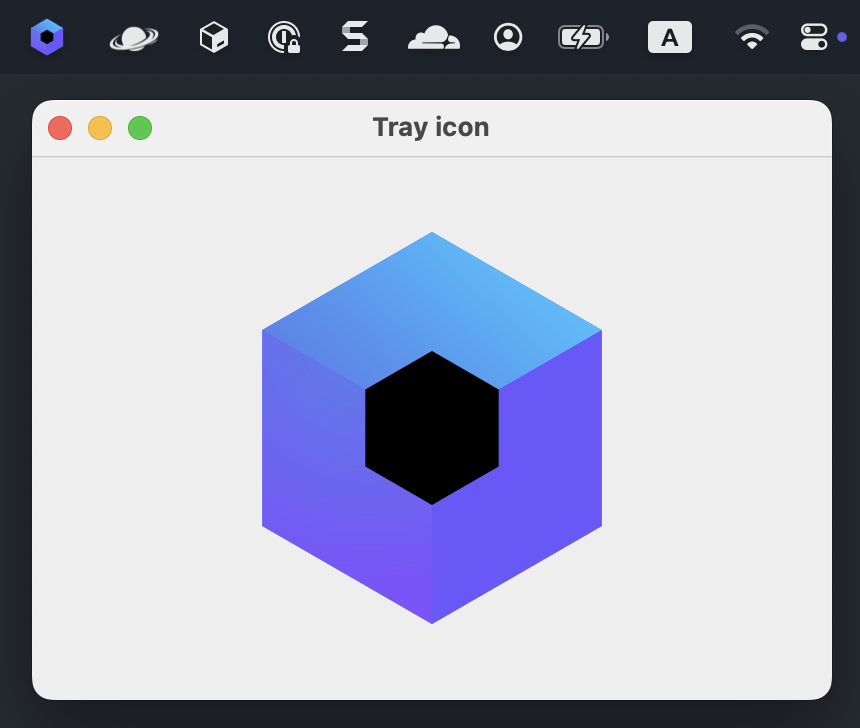
在 macOS 上,托盘图标显示在菜单栏中:
下一步
- 详细了解多平台资源以及如何在公共代码中访问它们。
- 了解如何向系统托盘添加应用程序图标。
- 了解如何使用平台特定的应用程序图标创建原生分发。
- 探索有关其它桌面组件的教程。