
鼠标事件监听器
在桌面项目中,你可以监听各种鼠标事件,例如点击、移动、滚动,或者进入和退出输入区域。
本指南中的示例均为可运行的桌面应用。若要尝试其中一个:
- 使用 Kotlin Multiplatform IDE 插件或联机向导创建一个 Compose Multiplatform 项目。
- 打开桌面入口点文件。例如
desktopApp/src/main/kotlin/com/example/my_desktop_app/main.kt。 - 将其内容替换为所提供的示例。
点击监听器
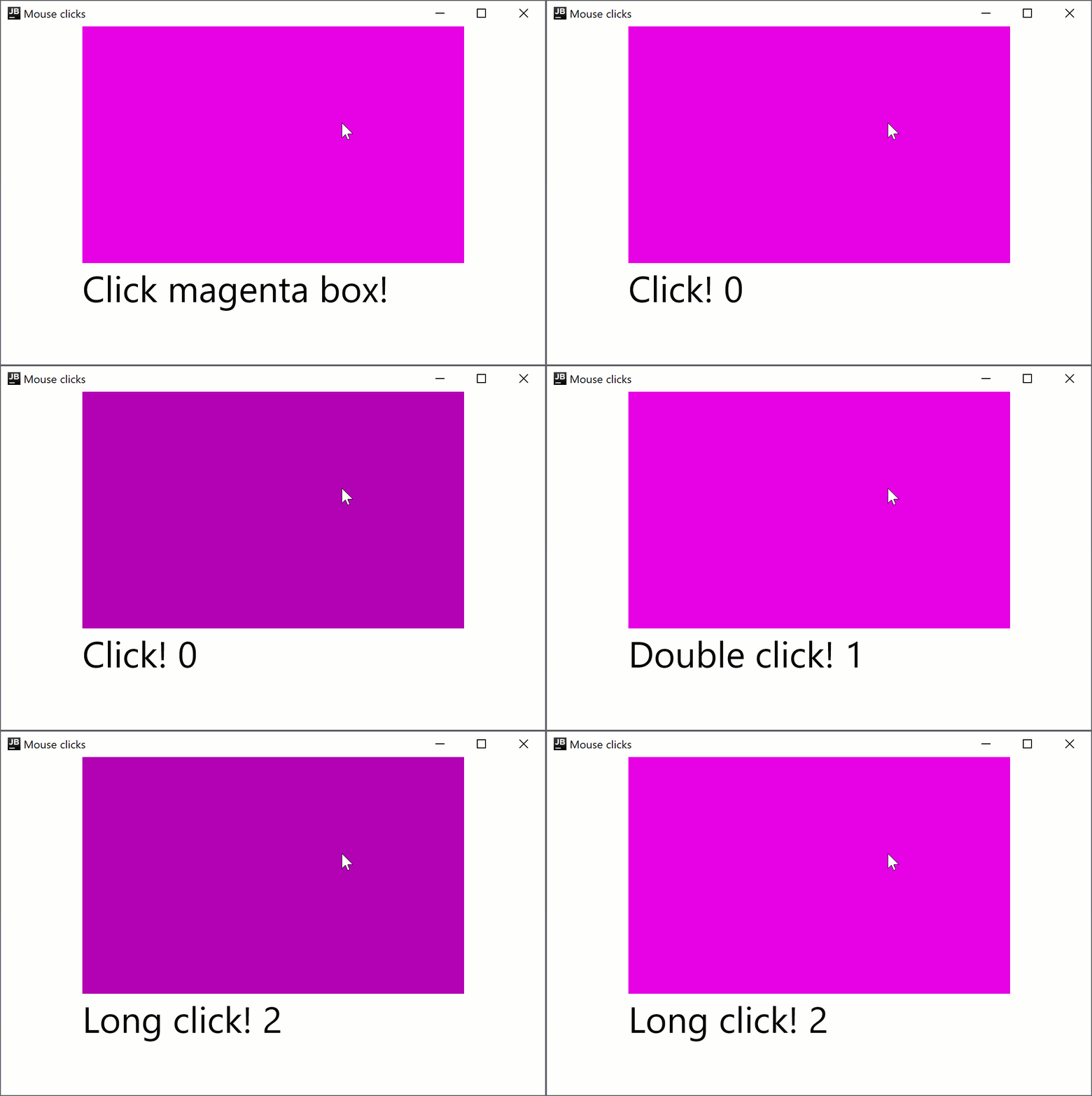
点击监听器在适用于 Android 的 Compose Multiplatform 和适用于桌面的 Compose Multiplatform 中均可用,因此你的代码可以在这两个平台上运行。 例如,以下展示了如何使用 onClick、onDoubleClick 和 onLongClick 修饰符设置简单的点击监听器:
Box(modifier = Modifier.combinedClickable(onClick = { text = {...}
import androidx.compose.foundation.ExperimentalFoundationApi
import androidx.compose.foundation.background
import androidx.compose.foundation.combinedClickable
import androidx.compose.foundation.layout.Box
import androidx.compose.foundation.layout.Column
import androidx.compose.foundation.layout.fillMaxHeight
import androidx.compose.foundation.layout.fillMaxWidth
import androidx.compose.material.Text
import androidx.compose.runtime.getValue
import androidx.compose.runtime.mutableIntStateOf
import androidx.compose.runtime.mutableStateOf
import androidx.compose.runtime.remember
import androidx.compose.runtime.setValue
import androidx.compose.ui.Alignment
import androidx.compose.ui.Modifier
import androidx.compose.ui.graphics.Color
import androidx.compose.ui.unit.sp
import androidx.compose.ui.window.singleWindowApplication

fun main() = singleWindowApplication(title = "Mouse clicks") {
    var count by remember { mutableIntStateOf(0) }
    Box(contentAlignment = Alignment.Center, modifier = Modifier.fillMaxWidth()) {
        var text by remember { mutableStateOf("Click magenta box!") }
        Column {
            @OptIn(ExperimentalFoundationApi::class)
            Box(modifier = Modifier
                .background(Color.Magenta)
                .fillMaxWidth(0.7f)
                .fillMaxHeight(0.7f)
                .combinedClickable(
                    onClick = {
                        text = "Click! ${count++}"
                    },
                    onDoubleClick = {
                        text = "Double click! ${count++}"
                    },
                    onLongClick = {
                        text = "Long click! ${count++}"
                    }
                )
            )
            Text(text = text, fontSize = 40.sp)
        }
    }
}
combinedClickable 修饰符仅支持主按钮(鼠标左键)和触摸事件。如果你需要以不同方式处理各种按键,请参阅 Modifier.onClick 小节。
移动监听器
onPointerEvent 修饰符为实验性功能。需要进行选择加入(详情见下文),且仅供评估使用。 关于稳定版 API,请参阅 Modifier.pointerInput。
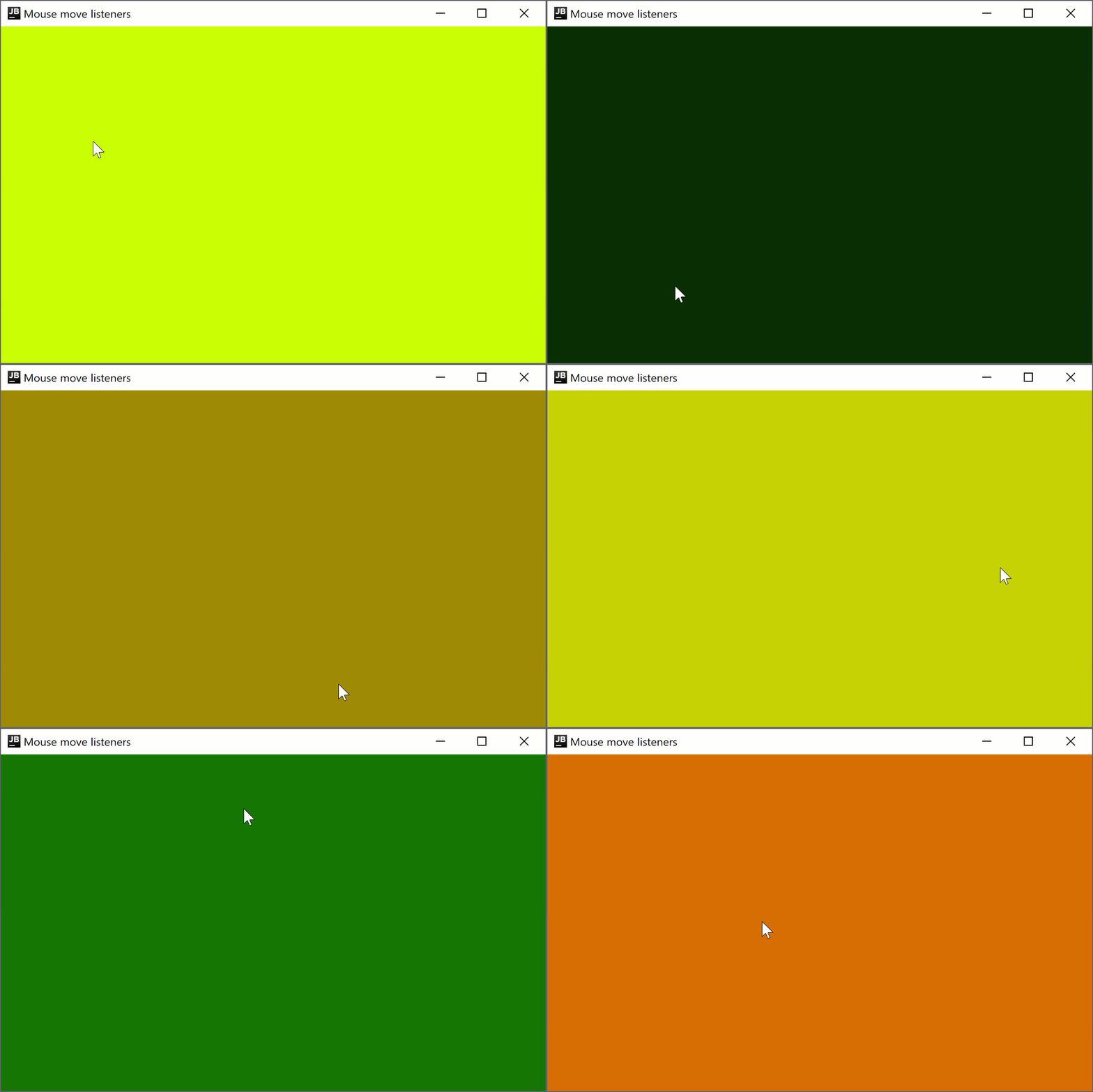
若要创建根据鼠标指针位置更改窗口背景颜色的指针移动监听器,请添加以下代码:
Box(modifier = Modifier.onPointerEvent(PointerEventType.Move) { color = {...}
import androidx.compose.foundation.background
import androidx.compose.foundation.layout.Box
import androidx.compose.foundation.layout.fillMaxSize
import androidx.compose.foundation.layout.wrapContentSize
import androidx.compose.runtime.getValue
import androidx.compose.runtime.mutableStateOf
import androidx.compose.runtime.remember
import androidx.compose.runtime.setValue
import androidx.compose.ui.Alignment
import androidx.compose.ui.ExperimentalComposeUiApi
import androidx.compose.ui.Modifier
import androidx.compose.ui.graphics.Color
import androidx.compose.ui.input.pointer.PointerEventType
import androidx.compose.ui.input.pointer.onPointerEvent
import androidx.compose.ui.window.singleWindowApplication

@OptIn(ExperimentalComposeUiApi::class)
fun main() = singleWindowApplication(title = "Mouse move listeners") {
    var color by remember { mutableStateOf(Color(0, 0, 0)) }
    Box(modifier = Modifier
        .wrapContentSize(Alignment.Center)
        .fillMaxSize()
        .background(color = color)
        .onPointerEvent(PointerEventType.Move) {
            val position = it.changes.first().position
            color = Color(position.x.toInt() % 256, position.y.toInt() % 256, 0)
        }
    )
}
进入监听器
onPointerEvent 修饰符为实验性功能。需要进行选择加入(详情见下文),且仅供评估使用。 关于稳定版 API,请参阅 Modifier.pointerInput。
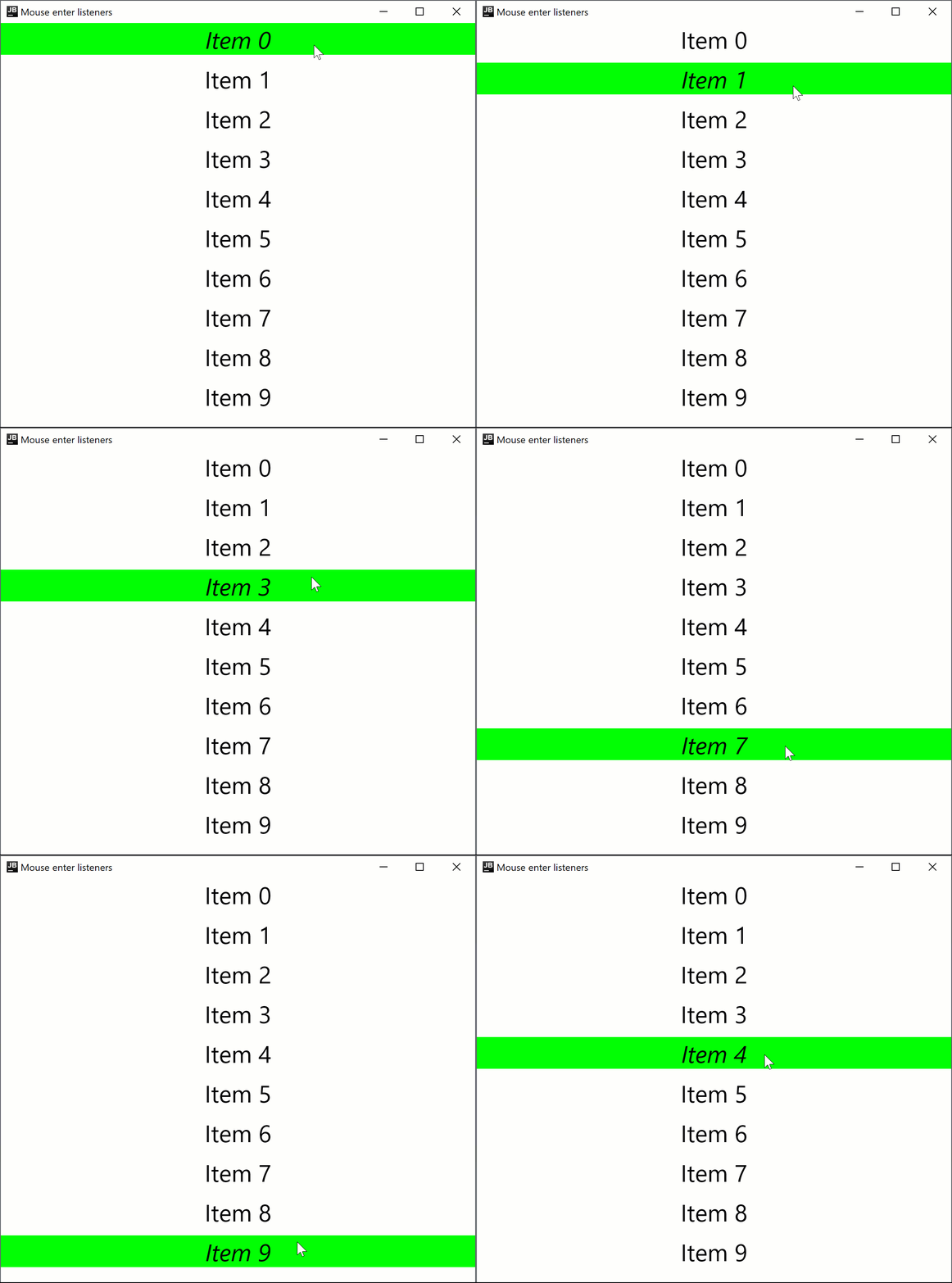
适用于桌面的 Compose Multiplatform 支持指针进入和退出输入区域的处理程序。例如,以下代码将在悬停时更改一行的字体样式:
Text(modifier = Modifier.onPointerEvent(PointerEventType.Enter) { active = {...}
import androidx.compose.foundation.background
import androidx.compose.foundation.layout.Arrangement
import androidx.compose.foundation.layout.Column
import androidx.compose.foundation.layout.fillMaxWidth
import androidx.compose.material.Text
import androidx.compose.runtime.getValue
import androidx.compose.runtime.mutableStateOf
import androidx.compose.runtime.remember
import androidx.compose.runtime.setValue
import androidx.compose.ui.ExperimentalComposeUiApi
import androidx.compose.ui.Modifier
import androidx.compose.ui.graphics.Color
import androidx.compose.ui.input.pointer.PointerEventType
import androidx.compose.ui.input.pointer.onPointerEvent
import androidx.compose.ui.text.font.FontStyle
import androidx.compose.ui.text.style.TextAlign
import androidx.compose.ui.unit.dp
import androidx.compose.ui.unit.sp
import androidx.compose.ui.window.singleWindowApplication

@OptIn(ExperimentalComposeUiApi::class)
fun main() = singleWindowApplication(title = "Mouse enter listeners") {
    Column(
        Modifier.background(Color.White),
        verticalArrangement = Arrangement.spacedBy(10.dp),
    ) {
        repeat(10) { index ->
            var active by remember { mutableStateOf(false) }
            Text(modifier = Modifier
                .fillMaxWidth()
                .background(color = if (active) Color.Green else Color.White)
                .onPointerEvent(PointerEventType.Enter) { active = true }
                .onPointerEvent(PointerEventType.Exit) { active = false },
                fontSize = 30.sp,
                fontStyle = if (active) FontStyle.Italic else FontStyle.Normal,
                text = "Item $index",
                textAlign = TextAlign.Center
            )
        }
    }
}
滚动监听器
onPointerEvent 修饰符为实验性功能。需要进行选择加入(详情见下文),且仅供评估使用。 关于稳定版 API,请参阅 Modifier.pointerInput。
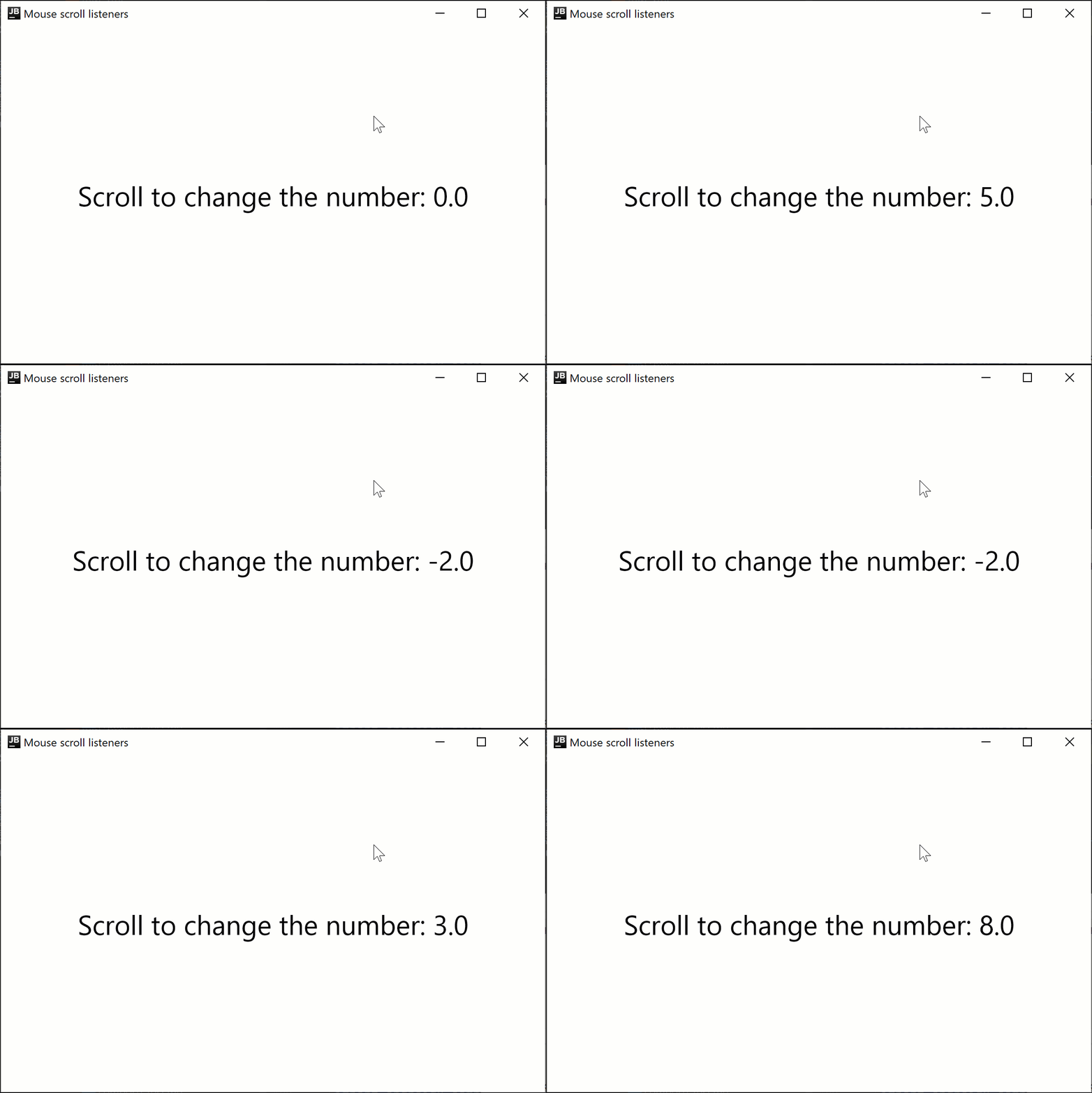
以下代码示例演示了如何根据鼠标滚动方向增加或减少显示的数字:
Box(Modifier.onPointerEvent(PointerEventType.Scroll) { number += {...}
import androidx.compose.foundation.layout.Box
import androidx.compose.foundation.layout.fillMaxSize
import androidx.compose.material.Text
import androidx.compose.runtime.getValue
import androidx.compose.runtime.mutableFloatStateOf
import androidx.compose.runtime.remember
import androidx.compose.runtime.setValue
import androidx.compose.ui.Alignment
import androidx.compose.ui.ExperimentalComposeUiApi
import androidx.compose.ui.Modifier
import androidx.compose.ui.input.pointer.PointerEventType
import androidx.compose.ui.input.pointer.onPointerEvent
import androidx.compose.ui.unit.sp
import androidx.compose.ui.window.singleWindowApplication

@OptIn(ExperimentalComposeUiApi::class)
fun main() = singleWindowApplication(title = "Mouse scroll listeners") {
    var number by remember { mutableFloatStateOf(0f) }
    Box(
        Modifier
            .fillMaxSize()
            .onPointerEvent(PointerEventType.Scroll) {
                number += it.changes.first().scrollDelta.y
            },
        contentAlignment = Alignment.Center
    ) {
        Text("Scroll to change the number: $number", fontSize = 30.sp)
    }
}
实验性 onClick 处理程序
onClick 修饰符为实验性功能,并且仅在桌面项目中受支持。需要进行选择加入(详情见下文),且仅供评估使用。
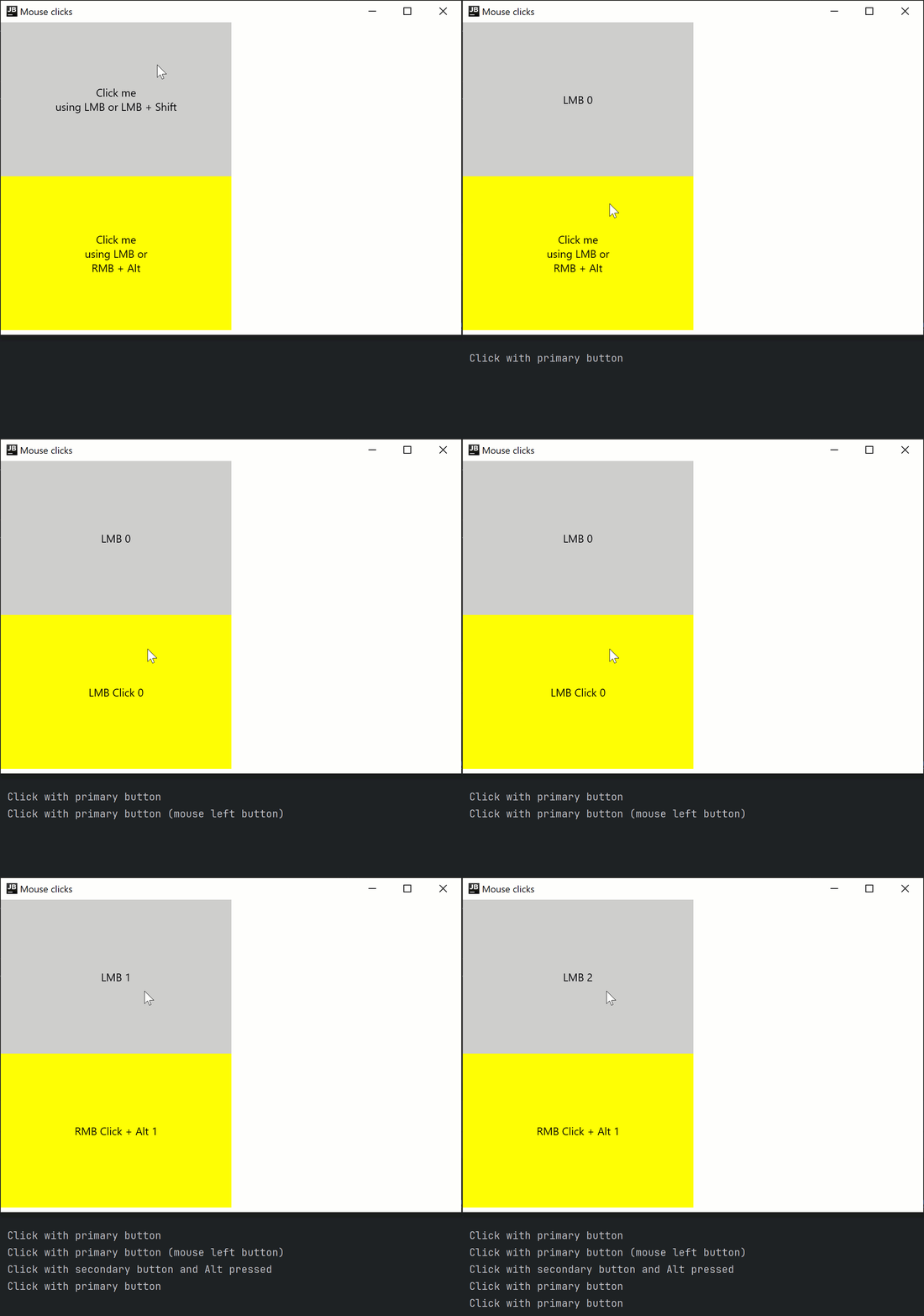
Modifier.onClick 为单击、双击和长按提供独立的回调。它仅处理源自指针事件的点击,无法开箱即用地处理无障碍 click 事件。
你可以通过 matcher: PointerMatcher 和 keyboardModifiers: PointerKeyboardModifiers.() -> Boolean 来配置每个 onClick 以针对特定的指针事件:
matcher允许你选择应触发点击事件的鼠标按键。keyboardModifiers允许你筛选在按下指定按键时发生的指针事件。
你还可以将多个 onClick 修饰符链接在一起,以针对匹配器和键盘修饰符的不同条件处理不同的点击。 与 clickable 不同,onClick 没有默认的 Modifier.indication 和 Modifier.semantics,并且在按下 Enter 时不会触发点击事件。如有必要,请单独添加这些修饰符。 你应该先声明最通用(条件最少)的 onClick 处理程序,然后再声明其他处理程序,以确保事件正确传播。
Box(modifier = Modifier.onClick { {...}
import androidx.compose.animation.AnimatedContent
import androidx.compose.foundation.ExperimentalFoundationApi
import androidx.compose.foundation.LocalIndication
import androidx.compose.foundation.PointerMatcher
import androidx.compose.foundation.background
import androidx.compose.foundation.indication
import androidx.compose.foundation.interaction.MutableInteractionSource
import androidx.compose.foundation.layout.Box
import androidx.compose.foundation.layout.Column
import androidx.compose.foundation.layout.size
import androidx.compose.foundation.onClick
import androidx.compose.material.Text
import androidx.compose.runtime.*
import androidx.compose.ui.Alignment
import androidx.compose.ui.Modifier
import androidx.compose.ui.graphics.Color
import androidx.compose.ui.input.pointer.PointerButton
import androidx.compose.ui.input.pointer.isAltPressed
import androidx.compose.ui.input.pointer.isShiftPressed
import androidx.compose.ui.text.style.TextAlign
import androidx.compose.ui.unit.dp
import androidx.compose.ui.window.singleWindowApplication

@OptIn(ExperimentalFoundationApi::class)
fun main() = singleWindowApplication(title = "Mouse clicks") {
    Column {
        var topBoxText by remember { mutableStateOf("Click me\nusing LMB or LMB + Shift") }
        var topBoxCount by remember { mutableIntStateOf(0) }
        // No indication on interaction
        Box(modifier = Modifier
            .size(300.dp, 200.dp)
            .background(Color.LightGray)
            // The most generic click handler (without extra conditions) should be the first one
            .onClick {
                // Receives all left mouse button clicks except for when Shift is pressed
                println("Click with primary button")
                topBoxText = "LMB ${topBoxCount++}"
            }.onClick(
                keyboardModifiers = { isShiftPressed } // Accepts clicks only when Shift is pressed
            ) {
                // Receives all left mouse button clicks when Shift is pressed
                println("Click with primary button and shift pressed")
                topBoxCount++
                topBoxText = "LMB + Shift ${topBoxCount++}"
            }
        ) {
            AnimatedContent(
                targetState = topBoxText,
                modifier = Modifier.align(Alignment.Center)
            ) {
                Text(text = it, textAlign = TextAlign.Center)
            }
        }

        var bottomBoxText by remember { mutableStateOf("Click me\nusing LMB or\nRMB + Alt") }
        var bottomBoxCount by remember { mutableStateOf(0) }
        val interactionSource = remember { MutableInteractionSource() }
        // With indication on interaction
        Box(modifier = Modifier
            .size(300.dp, 200.dp)
            .background(Color.Yellow)
            .onClick(
                enabled = true,
                interactionSource = interactionSource,
                matcher = PointerMatcher.mouse(PointerButton.Secondary), // Right mouse button
                keyboardModifiers = { isAltPressed }, // Accepts clicks only when Alt is pressed
                onLongClick = { // Optional
                    bottomBoxText = "RMB Long Click + Alt ${bottomBoxCount++}"
                    println("Long Click with secondary button and Alt pressed")
                },
                onDoubleClick = { // Optional
                    bottomBoxText = "RMB Double Click + Alt ${bottomBoxCount++}"
                    println("Double Click with secondary button and Alt pressed")
                },
                onClick = {
                    bottomBoxText = "RMB Click + Alt ${bottomBoxCount++}"
                    println("Click with secondary button and Alt pressed")
                }
            )
            .onClick(interactionSource = interactionSource) { // Uses default parameters
                bottomBoxText = "LMB Click ${bottomBoxCount++}"
                println("Click with primary button (mouse left button)")
            }
            .indication(interactionSource, LocalIndication.current)
        ) {
            AnimatedContent(
                targetState = bottomBoxText,
                modifier = Modifier.align(Alignment.Center)
            ) {
                Text(text = it, textAlign = TextAlign.Center)
            }
        }
    }
}
实验性 onDrag 修饰符
onDrag 修饰符为实验性功能,并且仅在桌面项目中受支持。需要进行选择加入(详情见下文),且仅供评估使用。
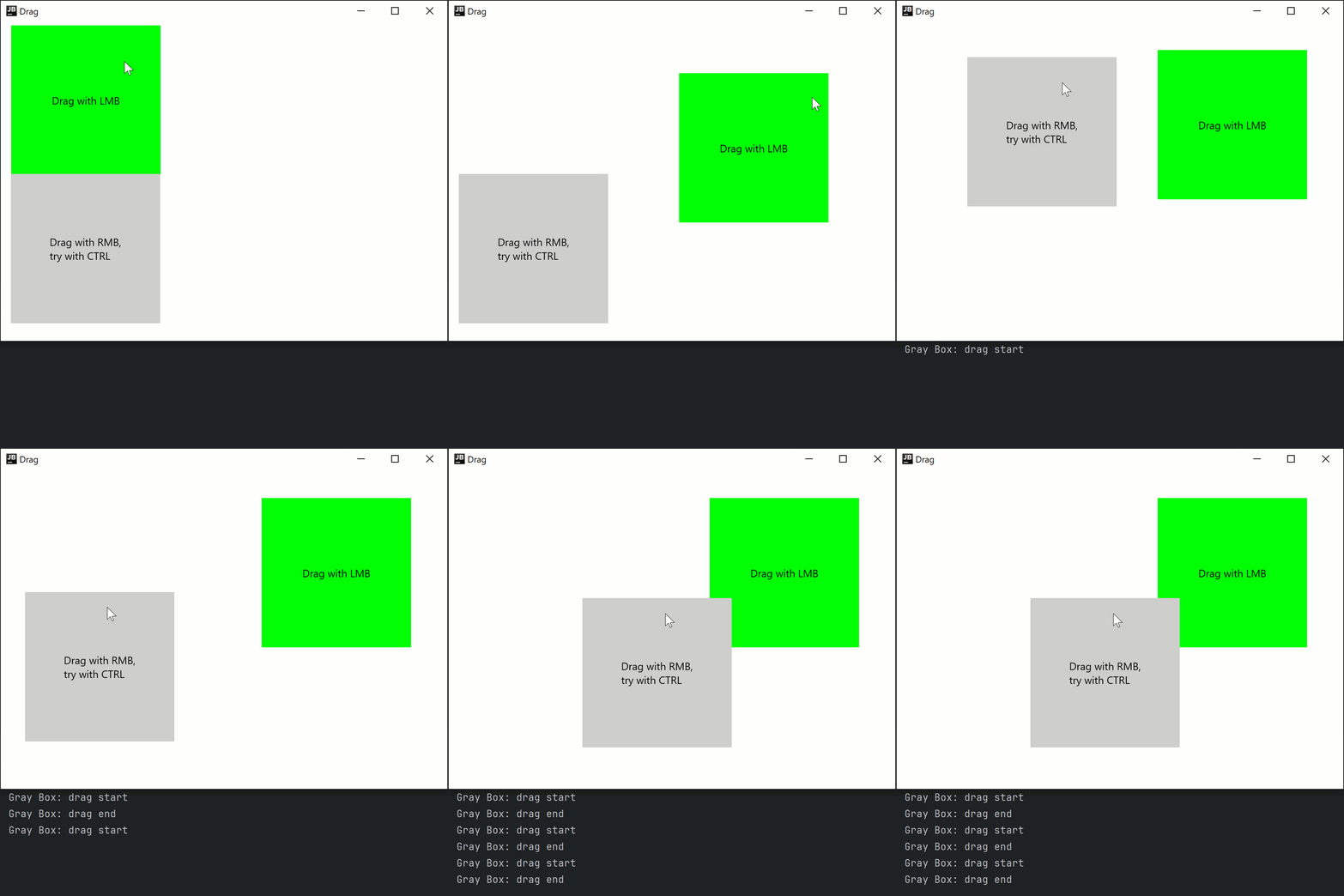
借助 Modifier.onDrag,你可以通过 matcher: PointerMatcher 指定应触发拖动的指针。 类似于 onClick,你可以将多个 onDrag 修饰符链接在一起。
你还可以通过 LocalWindowInfo.current.keyboardModifier 检查键盘修饰键的状态,以应对按键改变拖动行为的场景。 例如,单纯拖动时移动项,而在按住 Ctrl 的同时拖动则复制/粘贴项。
以下代码示例演示了如何处理由鼠标左键和右键触发的拖动事件,以及在键盘参与时的拖动事件:
Box(modifier = Modifier.onDrag { {...}
import androidx.compose.foundation.ExperimentalFoundationApi
import androidx.compose.foundation.PointerMatcher
import androidx.compose.foundation.background
import androidx.compose.foundation.gestures.onDrag
import androidx.compose.foundation.layout.Box
import androidx.compose.foundation.layout.Column
import androidx.compose.foundation.layout.offset
import androidx.compose.foundation.layout.size
import androidx.compose.material.Text
import androidx.compose.runtime.getValue
import androidx.compose.runtime.mutableStateOf
import androidx.compose.runtime.remember
import androidx.compose.runtime.setValue
import androidx.compose.ui.Alignment
import androidx.compose.ui.Modifier
import androidx.compose.ui.geometry.Offset
import androidx.compose.ui.graphics.Color
import androidx.compose.ui.input.pointer.PointerButton
import androidx.compose.ui.input.pointer.isCtrlPressed
import androidx.compose.ui.platform.LocalWindowInfo
import androidx.compose.ui.unit.IntOffset
import androidx.compose.ui.unit.dp
import androidx.compose.ui.window.singleWindowApplication

@OptIn(ExperimentalFoundationApi::class)
fun main() = singleWindowApplication(title = "Drag") {
    val windowInfo = LocalWindowInfo.current

    Column {
        var topBoxOffset by remember { mutableStateOf(Offset(0f, 0f)) }

        Box(modifier = Modifier
            .offset {
                IntOffset(topBoxOffset.x.toInt(), topBoxOffset.y.toInt())
            }
            .size(200.dp)
            .background(Color.Green)
            .onDrag { // By default: enabled = true, matcher = PointerMatcher.Primary (left mouse button)
                topBoxOffset += it
            }
        ) {
            Text(text = "Drag with LMB", modifier = Modifier.align(Alignment.Center))
        }

        var bottomBoxOffset by remember { mutableStateOf(Offset(0f, 0f)) }

        Box(modifier = Modifier
            .offset {
                IntOffset(bottomBoxOffset.x.toInt(), bottomBoxOffset.y.toInt())
            }
            .size(200.dp)
            .background(Color.LightGray)
            .onDrag(
                matcher = PointerMatcher.mouse(PointerButton.Secondary), // Right mouse button
                onDragStart = {
                    println("Gray Box: drag start")
                },
                onDragEnd = {
                    println("Gray Box: drag end")
                }
            ) {
                val keyboardModifiers = windowInfo.keyboardModifiers
                bottomBoxOffset += if (keyboardModifiers.isCtrlPressed) it * 2f else it
            }
        ) {
            Text(
                text = "Drag with RMB,\ntry with CTRL",
                modifier = Modifier.align(Alignment.Center)
            )
        }
    }
}
还有一种不使用修饰符来处理拖动的方法,即使用 suspend fun PointerInputScope.detectDragGestures:
Modifier.pointerInput(Unit) { detectDragGestures(matcher = PointerMatcher.Primary) {...}
import androidx.compose.foundation.ExperimentalFoundationApi
import androidx.compose.foundation.PointerMatcher
import androidx.compose.foundation.background
import androidx.compose.foundation.gestures.detectDragGestures
import androidx.compose.foundation.layout.Box
import androidx.compose.foundation.layout.offset
import androidx.compose.foundation.layout.size
import androidx.compose.material.Text
import androidx.compose.runtime.getValue
import androidx.compose.runtime.mutableStateOf
import androidx.compose.runtime.remember
import androidx.compose.runtime.setValue
import androidx.compose.ui.Alignment
import androidx.compose.ui.Modifier
import androidx.compose.ui.geometry.Offset
import androidx.compose.ui.graphics.Color
import androidx.compose.ui.input.pointer.pointerInput
import androidx.compose.ui.unit.IntOffset
import androidx.compose.ui.unit.dp
import androidx.compose.ui.window.singleWindowApplication

@OptIn(ExperimentalFoundationApi::class)
fun main() = singleWindowApplication(title = "Drag") {
    var topBoxOffset by remember { mutableStateOf(Offset(0f, 0f)) }

    Box(modifier = Modifier
        .offset {
            IntOffset(topBoxOffset.x.toInt(), topBoxOffset.y.toInt())
        }
        .size(200.dp)
        .background(Color.Green)
        .pointerInput(Unit) {
            detectDragGestures(
                matcher = PointerMatcher.Primary
            ) {
                topBoxOffset += it
            }
        }
    ) {
        Text(text = "Drag with LMB", modifier = Modifier.align(Alignment.Center))
    }
}
通过 Swing 互操作性访问原始 AWT 事件
onPointerEvent 修饰符为实验性功能。需要进行选择加入(详情见下文),且仅供评估使用。 关于稳定版 API,请参阅 Modifier.pointerInput。
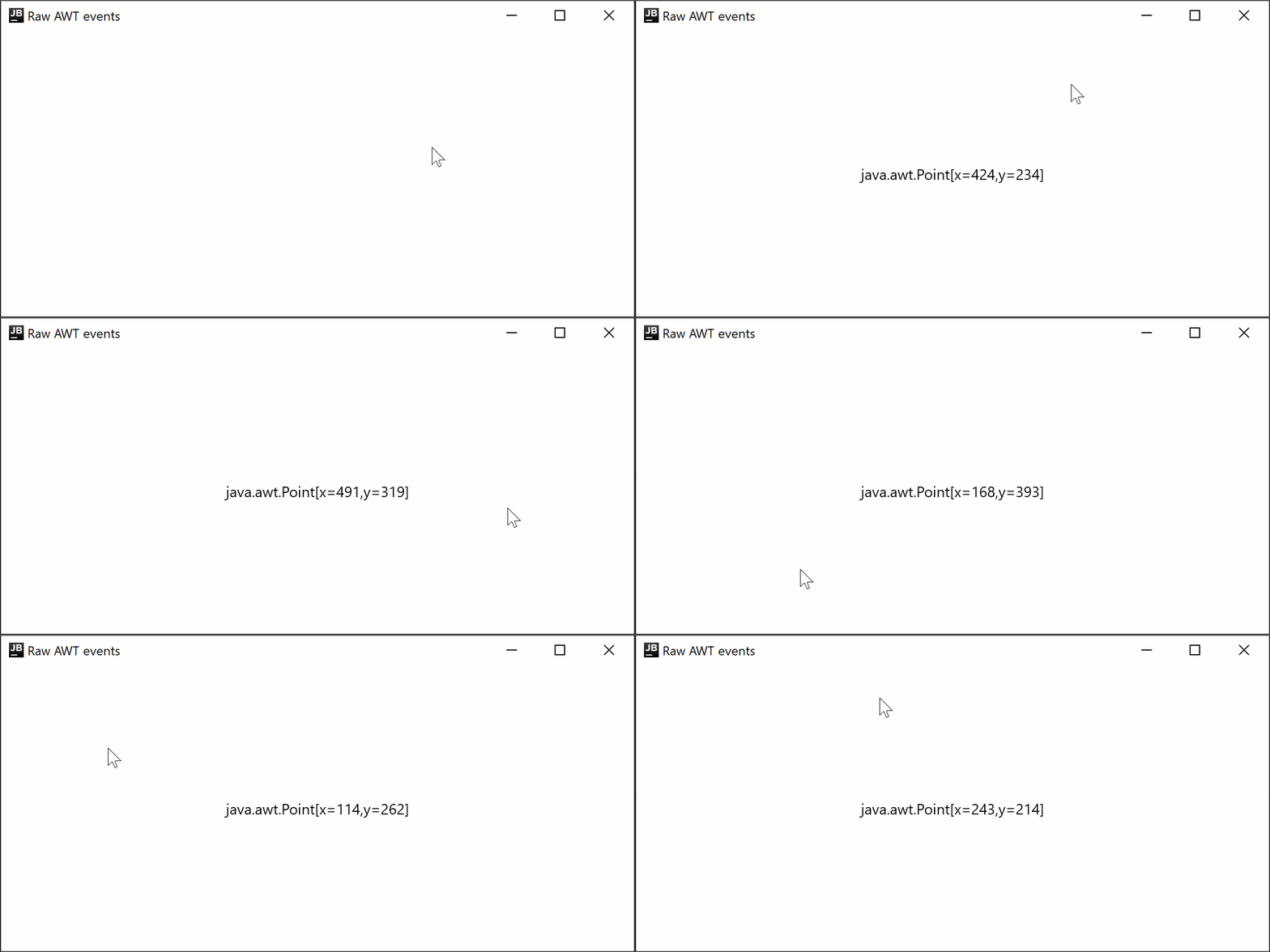
适用于桌面的 Compose Multiplatform 在底层使用 Swing,并允许访问原始 AWT 事件:
Box(Modifier.onPointerEvent(PointerEventType.Press) { text = {...}
import androidx.compose.foundation.layout.Box
import androidx.compose.foundation.layout.fillMaxSize
import androidx.compose.material.Text
import androidx.compose.runtime.getValue
import androidx.compose.runtime.mutableStateOf
import androidx.compose.runtime.remember
import androidx.compose.runtime.setValue
import androidx.compose.ui.Alignment
import androidx.compose.ui.ExperimentalComposeUiApi
import androidx.compose.ui.Modifier
import androidx.compose.ui.awt.awtEventOrNull
import androidx.compose.ui.input.pointer.PointerEventType
import androidx.compose.ui.input.pointer.onPointerEvent
import androidx.compose.ui.window.singleWindowApplication

@OptIn(ExperimentalComposeUiApi::class)
fun main() = singleWindowApplication(title = "Raw AWT events") {
    var text by remember { mutableStateOf("") }

    Box(
        Modifier
            .fillMaxSize()
            .onPointerEvent(PointerEventType.Press) {
                text = it.awtEventOrNull?.locationOnScreen?.toString().orEmpty()
            },
        contentAlignment = Alignment.Center
    ) {
        Text(text)
    }
}
通过 pointerInput 在通用代码中监听原始事件
在上述代码段中,我们使用了 Modifier.onPointerEvent 函数,这是一个用于订阅某种类型指针事件的帮助程序函数。它是 Modifier.pointerInput 函数的一种较新的简短变体。 它目前处于实验阶段且仅限桌面平台使用,因此你无法在通用代码中使用它。
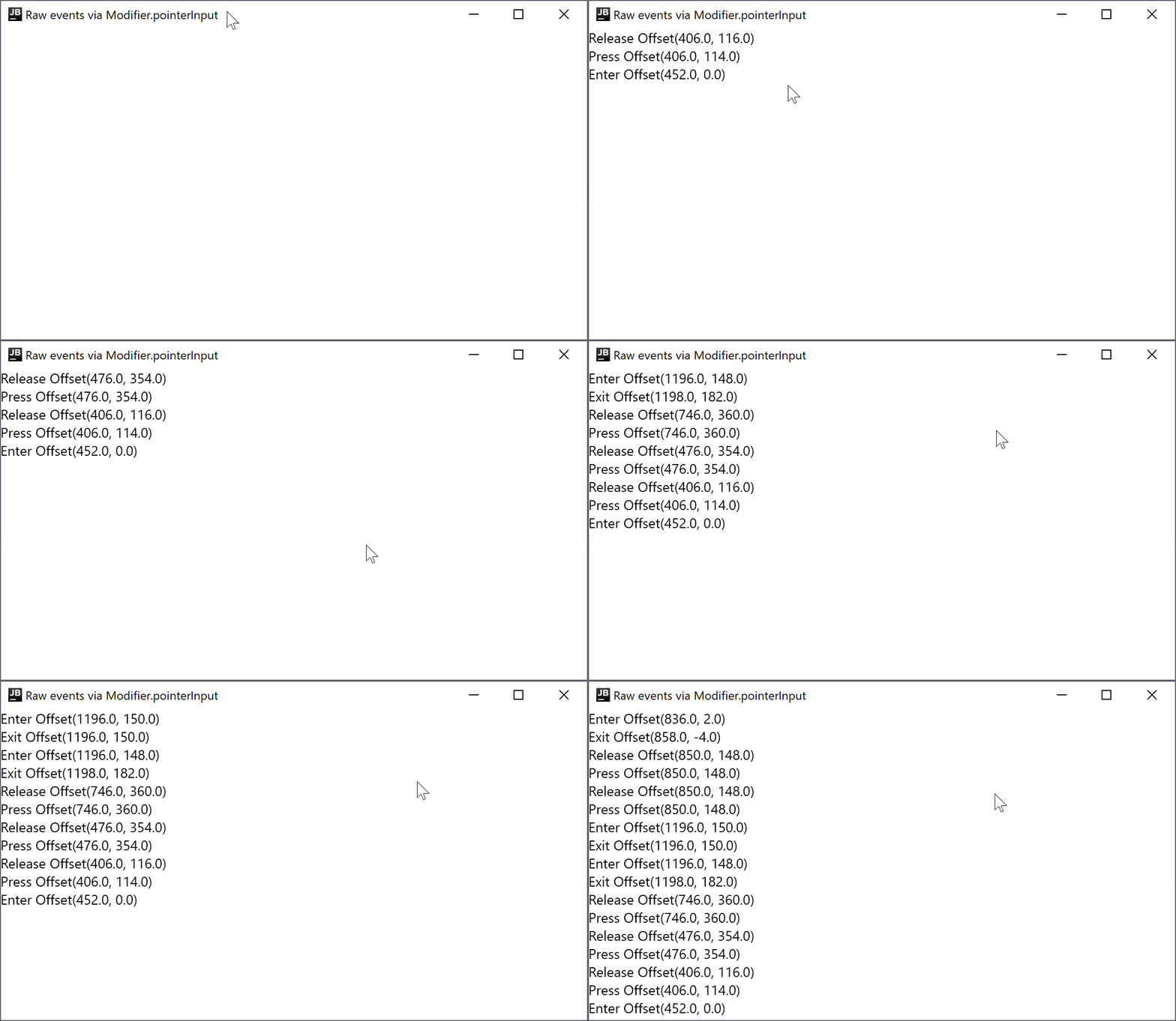
如果你需要在通用代码中订阅事件,或者需要稳定版 API,可以使用 Modifier.pointerInput 函数:
Column(Modifier.pointerInput(Unit) { awaitPointerEventScope { {...}
import androidx.compose.foundation.layout.Column
import androidx.compose.foundation.layout.fillMaxSize
import androidx.compose.material.Text
import androidx.compose.runtime.mutableStateListOf
import androidx.compose.runtime.remember
import androidx.compose.ui.Modifier
import androidx.compose.ui.input.pointer.PointerEventType
import androidx.compose.ui.input.pointer.pointerInput
import androidx.compose.ui.window.singleWindowApplication

fun main() = singleWindowApplication(title = "Raw events via Modifier.pointerInput") {
    val list = remember { mutableStateListOf<String>() }

    Column(
        Modifier
            .fillMaxSize()
            .pointerInput(Unit) {
                awaitPointerEventScope {
                    while (true) {
                        val event = awaitPointerEvent()
                        val position = event.changes.first().position
                        // On each relayout, Compose will send a synthetic Move event,
                        // so we skip it to avoid event spam
                        if (event.type != PointerEventType.Move) {
                            list.add(0, "${event.type} $position")
                        }
                    }
                }
            },
    ) {
        for (item in list.take(20)) {
            Text(item)
        }
    }
}
后续步骤
浏览有关其他桌面组件的教程。