
마우스 이벤트 리스너
데스크톱 프로젝트에서는 클릭, 이동, 스크롤, 입력 영역 진입 및 이탈 등 다양한 마우스 이벤트를 감지할 수 있습니다.
이 가이드의 예제들은 실행 가능한 데스크톱 앱입니다. 직접 실행해 보려면 다음 단계를 따르세요.
- Kotlin Multiplatform IDE 플러그인 또는 온라인 마법사를 사용하여 Compose Multiplatform 프로젝트를 생성합니다.
- 데스크톱 진입점 파일을 엽니다. 예를 들면
desktopApp/src/main/kotlin/com/example/my_desktop_app/main.kt입니다. - 해당 파일의 내용을 제공된 예제 코드로 바꿉니다.
클릭 리스너
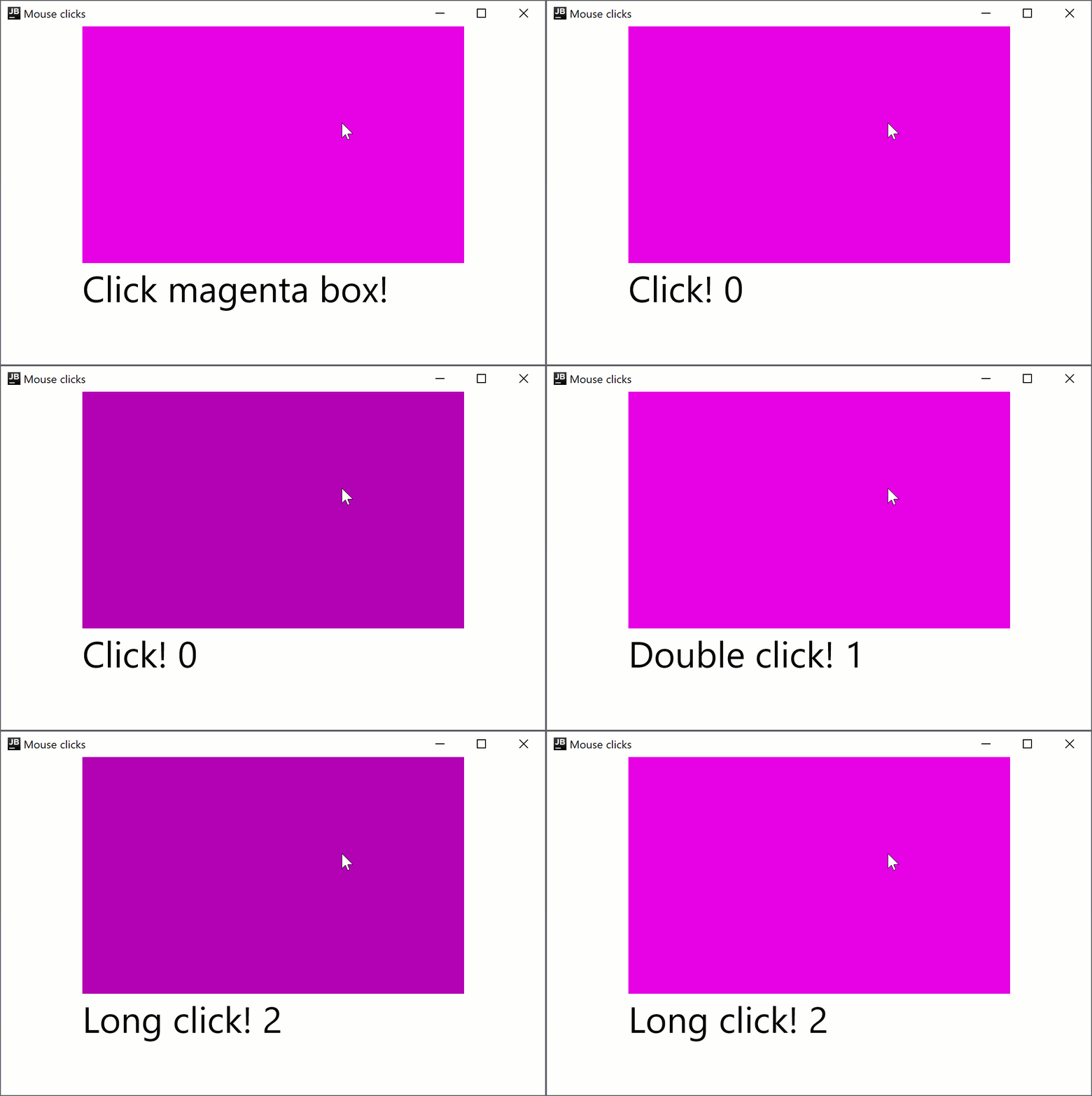
클릭 리스너는 Android용 Compose Multiplatform과 데스크톱용 Compose Multiplatform 모두에서 지원되므로 작성한 코드가 두 플랫폼에서 모두 동작합니다. 예를 들어 onClick, onDoubleClick, onLongClick 수정자(modifier)를 사용하여 간단한 클릭 리스너를 설정하는 방법은 다음과 같습니다.
Box(modifier = Modifier.combinedClickable(onClick = { text = {...}
import androidx.compose.foundation.ExperimentalFoundationApi
import androidx.compose.foundation.background
import androidx.compose.foundation.combinedClickable
import androidx.compose.foundation.layout.Box
import androidx.compose.foundation.layout.Column
import androidx.compose.foundation.layout.fillMaxHeight
import androidx.compose.foundation.layout.fillMaxWidth
import androidx.compose.material.Text
import androidx.compose.runtime.getValue
import androidx.compose.runtime.mutableIntStateOf
import androidx.compose.runtime.mutableStateOf
import androidx.compose.runtime.remember
import androidx.compose.runtime.setValue
import androidx.compose.ui.Alignment
import androidx.compose.ui.Modifier
import androidx.compose.ui.graphics.Color
import androidx.compose.ui.unit.sp
import androidx.compose.ui.window.singleWindowApplication

fun main() = singleWindowApplication(title = "Mouse clicks") {
    var count by remember { mutableIntStateOf(0) }
    Box(contentAlignment = Alignment.Center, modifier = Modifier.fillMaxWidth()) {
        var text by remember { mutableStateOf("Click magenta box!") }
        Column {
            @OptIn(ExperimentalFoundationApi::class)
            Box(modifier = Modifier
                .background(Color.Magenta)
                .fillMaxWidth(0.7f)
                .fillMaxHeight(0.7f)
                .combinedClickable(
                    onClick = {
                        text = "Click! ${count++}"
                    },
                    onDoubleClick = {
                        text = "Double click! ${count++}"
                    },
                    onLongClick = {
                        text = "Long click! ${count++}"
                    }
                )
            )
            Text(text = text, fontSize = 40.sp)
        }
    }
}
combinedClickable 수정자는 기본 버튼(마우스 왼쪽 버튼)과 터치 이벤트만 지원합니다. 마우스 버튼별로 다르게 처리해야 하는 경우 Modifier.onClick 섹션을 참조하세요.
이동 리스너
onPointerEvent 수정자는 실험적(Experimental) 기능입니다. 사용하려면 옵트인(opt-in)이 필요하며(아래 세부 정보 참조), 평가 목적으로만 사용해야 합니다. 안정화(Stable)된 API를 확인하려면 Modifier.pointerInput을 참조하세요.
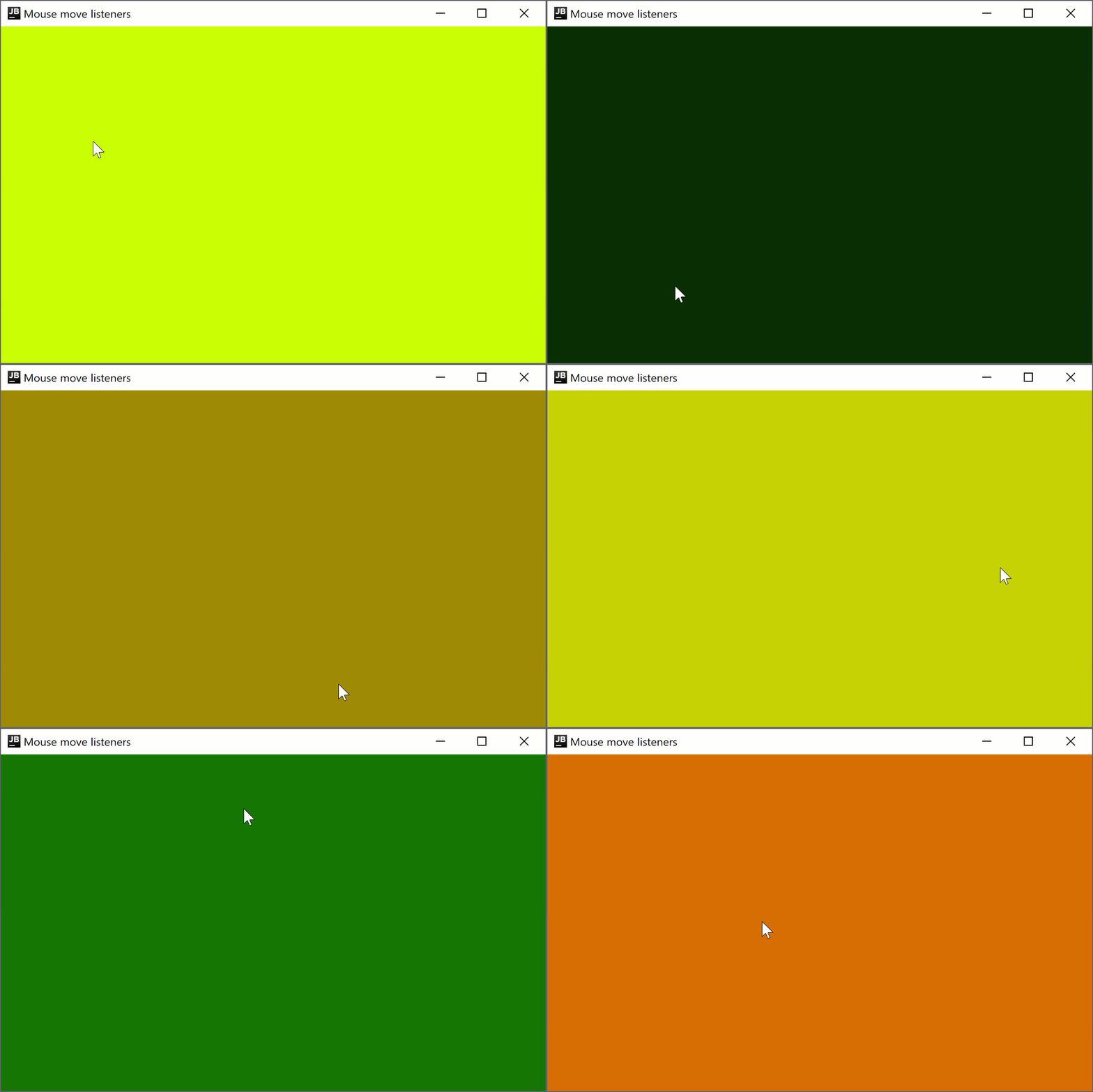
마우스 포인터 위치에 따라 윈도우의 배경색을 변경하는 포인터 이동 리스너를 생성하려면 다음 코드를 추가합니다.
Box(modifier = Modifier.onPointerEvent(PointerEventType.Move) { color = {...}
import androidx.compose.foundation.background
import androidx.compose.foundation.layout.Box
import androidx.compose.foundation.layout.fillMaxSize
import androidx.compose.foundation.layout.wrapContentSize
import androidx.compose.runtime.getValue
import androidx.compose.runtime.mutableStateOf
import androidx.compose.runtime.remember
import androidx.compose.runtime.setValue
import androidx.compose.ui.Alignment
import androidx.compose.ui.ExperimentalComposeUiApi
import androidx.compose.ui.Modifier
import androidx.compose.ui.graphics.Color
import androidx.compose.ui.input.pointer.PointerEventType
import androidx.compose.ui.input.pointer.onPointerEvent
import androidx.compose.ui.window.singleWindowApplication

@OptIn(ExperimentalComposeUiApi::class)
fun main() = singleWindowApplication(title = "Mouse move listeners") {
    var color by remember { mutableStateOf(Color(0, 0, 0)) }
    Box(modifier = Modifier
        .wrapContentSize(Alignment.Center)
        .fillMaxSize()
        .background(color = color)
        .onPointerEvent(PointerEventType.Move) {
            val position = it.changes.first().position
            color = Color(position.x.toInt() % 256, position.y.toInt() % 256, 0)
        }
    )
}
진입 리스너
onPointerEvent 수정자는 실험적(Experimental) 기능입니다. 사용하려면 옵트인(opt-in)이 필요하며(아래 세부 정보 참조), 평가 목적으로만 사용해야 합니다. 안정화(Stable)된 API를 확인하려면 Modifier.pointerInput을 참조하세요.
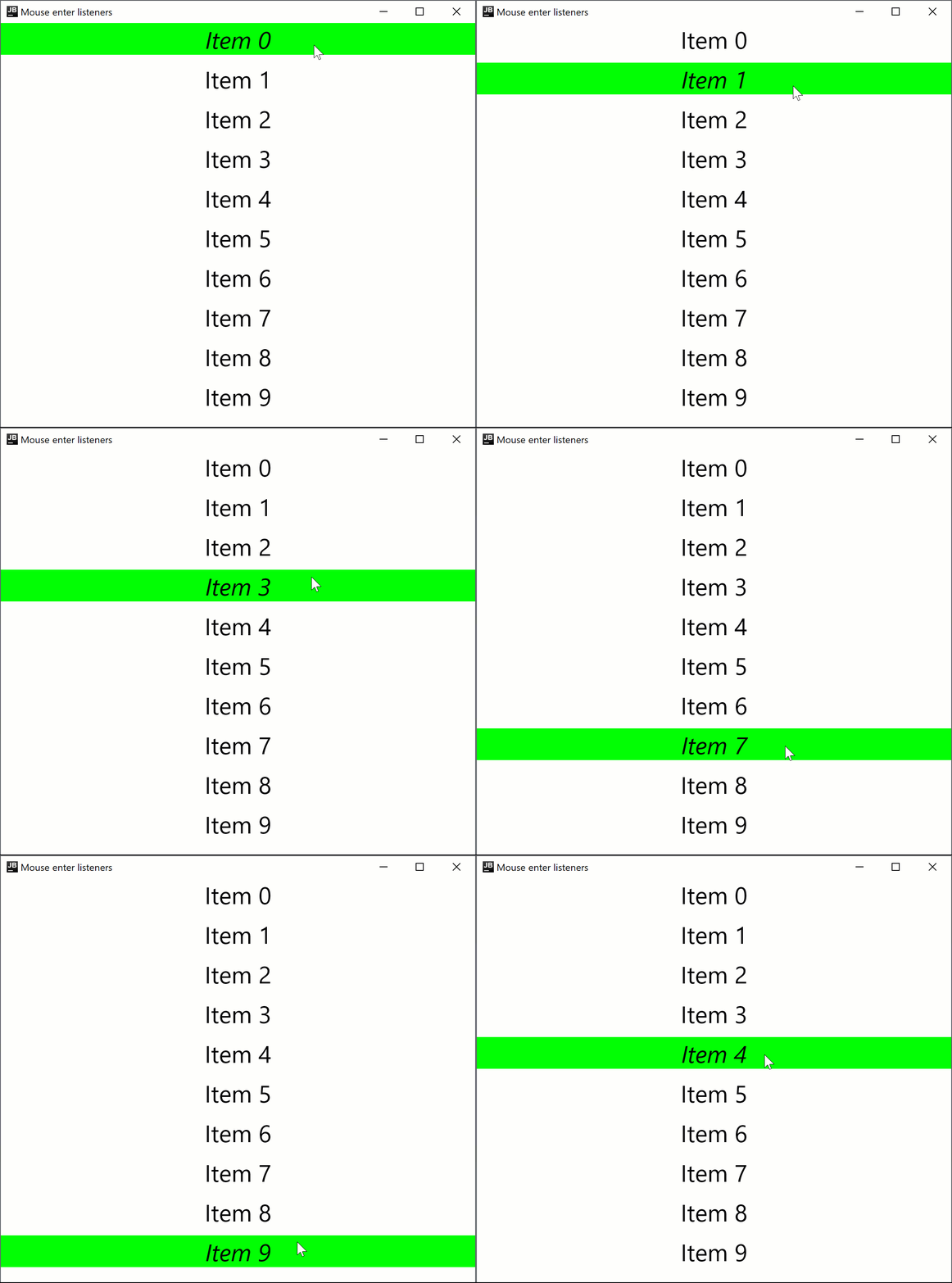
데스크톱용 Compose Multiplatform은 포인터가 입력 영역에 진입하거나 이탈하는 것을 감지하는 핸들러를 지원합니다. 예를 들어 다음 코드는 마우스를 올렸을 때(hover) 텍스트 줄의 글꼴 스타일을 변경합니다.
Text(modifier = Modifier.onPointerEvent(PointerEventType.Enter) { active = {...}
import androidx.compose.foundation.background
import androidx.compose.foundation.layout.Arrangement
import androidx.compose.foundation.layout.Column
import androidx.compose.foundation.layout.fillMaxWidth
import androidx.compose.material.Text
import androidx.compose.runtime.getValue
import androidx.compose.runtime.mutableStateOf
import androidx.compose.runtime.remember
import androidx.compose.runtime.setValue
import androidx.compose.ui.ExperimentalComposeUiApi
import androidx.compose.ui.Modifier
import androidx.compose.ui.graphics.Color
import androidx.compose.ui.input.pointer.PointerEventType
import androidx.compose.ui.input.pointer.onPointerEvent
import androidx.compose.ui.text.font.FontStyle
import androidx.compose.ui.text.style.TextAlign
import androidx.compose.ui.unit.dp
import androidx.compose.ui.unit.sp
import androidx.compose.ui.window.singleWindowApplication

@OptIn(ExperimentalComposeUiApi::class)
fun main() = singleWindowApplication(title = "Mouse enter listeners") {
    Column(
        Modifier.background(Color.White),
        verticalArrangement = Arrangement.spacedBy(10.dp),
    ) {
        repeat(10) { index ->
            var active by remember { mutableStateOf(false) }
            Text(modifier = Modifier
                .fillMaxWidth()
                .background(color = if (active) Color.Green else Color.White)
                .onPointerEvent(PointerEventType.Enter) { active = true }
                .onPointerEvent(PointerEventType.Exit) { active = false },
                fontSize = 30.sp,
                fontStyle = if (active) FontStyle.Italic else FontStyle.Normal,
                text = "Item $index",
                textAlign = TextAlign.Center
            )
        }
    }
}
스크롤 리스너
onPointerEvent 수정자는 실험적(Experimental) 기능입니다. 사용하려면 옵트인(opt-in)이 필요하며(아래 세부 정보 참조), 평가 목적으로만 사용해야 합니다. 안정화(Stable)된 API를 확인하려면 Modifier.pointerInput을 참조하세요.
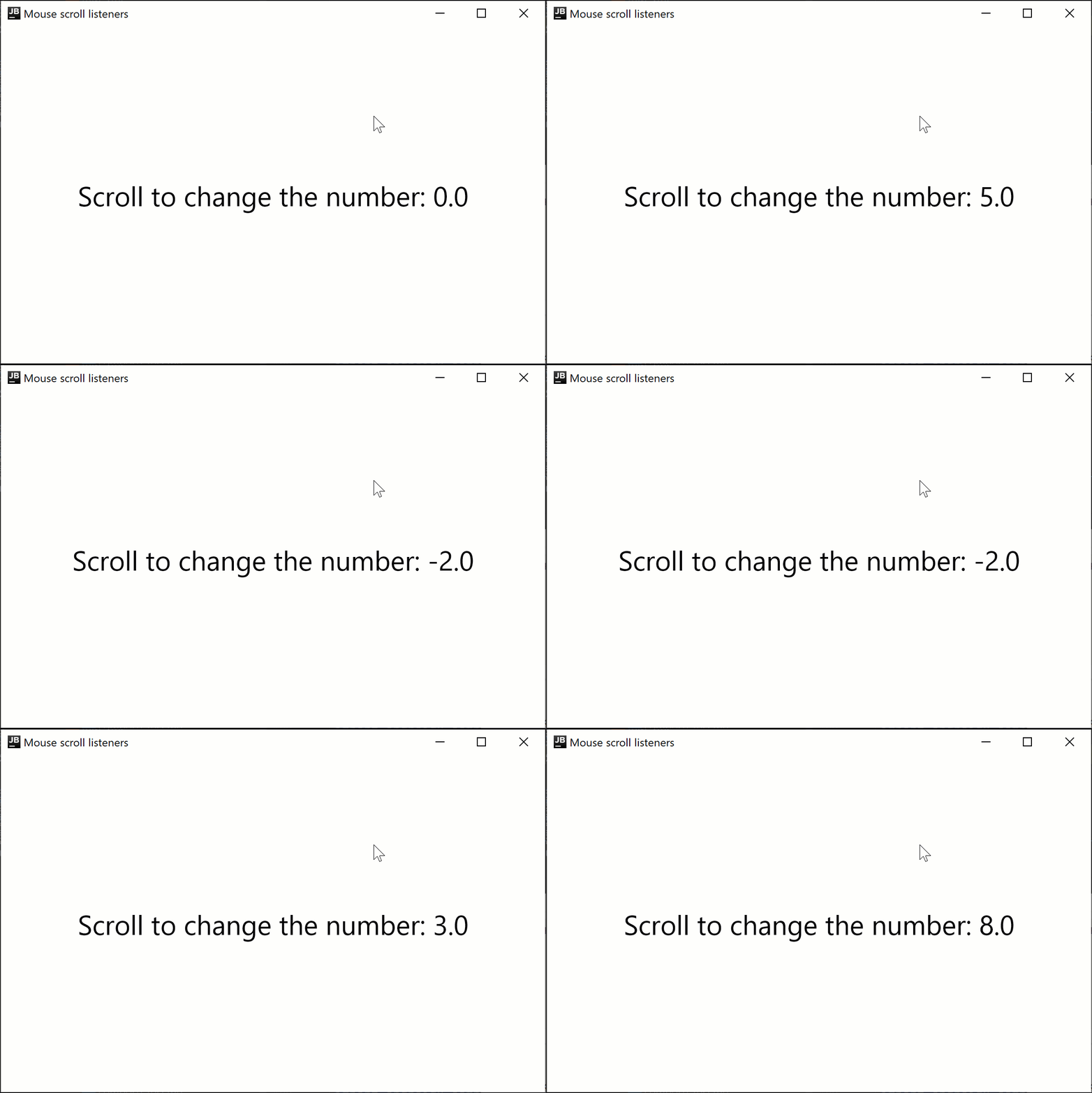
다음 코드 예제는 마우스 스크롤 방향에 따라 표시되는 숫자를 증가시키거나 감소시키는 방법을 보여줍니다.
Box(Modifier.onPointerEvent(PointerEventType.Scroll) { number += {...}
import androidx.compose.foundation.layout.Box
import androidx.compose.foundation.layout.fillMaxSize
import androidx.compose.material.Text
import androidx.compose.runtime.getValue
import androidx.compose.runtime.mutableFloatStateOf
import androidx.compose.runtime.remember
import androidx.compose.runtime.setValue
import androidx.compose.ui.Alignment
import androidx.compose.ui.ExperimentalComposeUiApi
import androidx.compose.ui.Modifier
import androidx.compose.ui.input.pointer.PointerEventType
import androidx.compose.ui.input.pointer.onPointerEvent
import androidx.compose.ui.unit.sp
import androidx.compose.ui.window.singleWindowApplication

@OptIn(ExperimentalComposeUiApi::class)
fun main() = singleWindowApplication(title = "Mouse scroll listeners") {
    var number by remember { mutableFloatStateOf(0f) }
    Box(
        Modifier
            .fillMaxSize()
            .onPointerEvent(PointerEventType.Scroll) {
                number += it.changes.first().scrollDelta.y
            },
        contentAlignment = Alignment.Center
    ) {
        Text("Scroll to change the number: $number", fontSize = 30.sp)
    }
}
실험적 onClick 핸들러
onClick 수정자는 실험적(Experimental) 기능이며 데스크톱 프로젝트에서만 지원됩니다. 사용하려면 옵트인(opt-in)이 필요하며(아래 세부 정보 참조), 평가 목적으로만 사용해야 합니다.
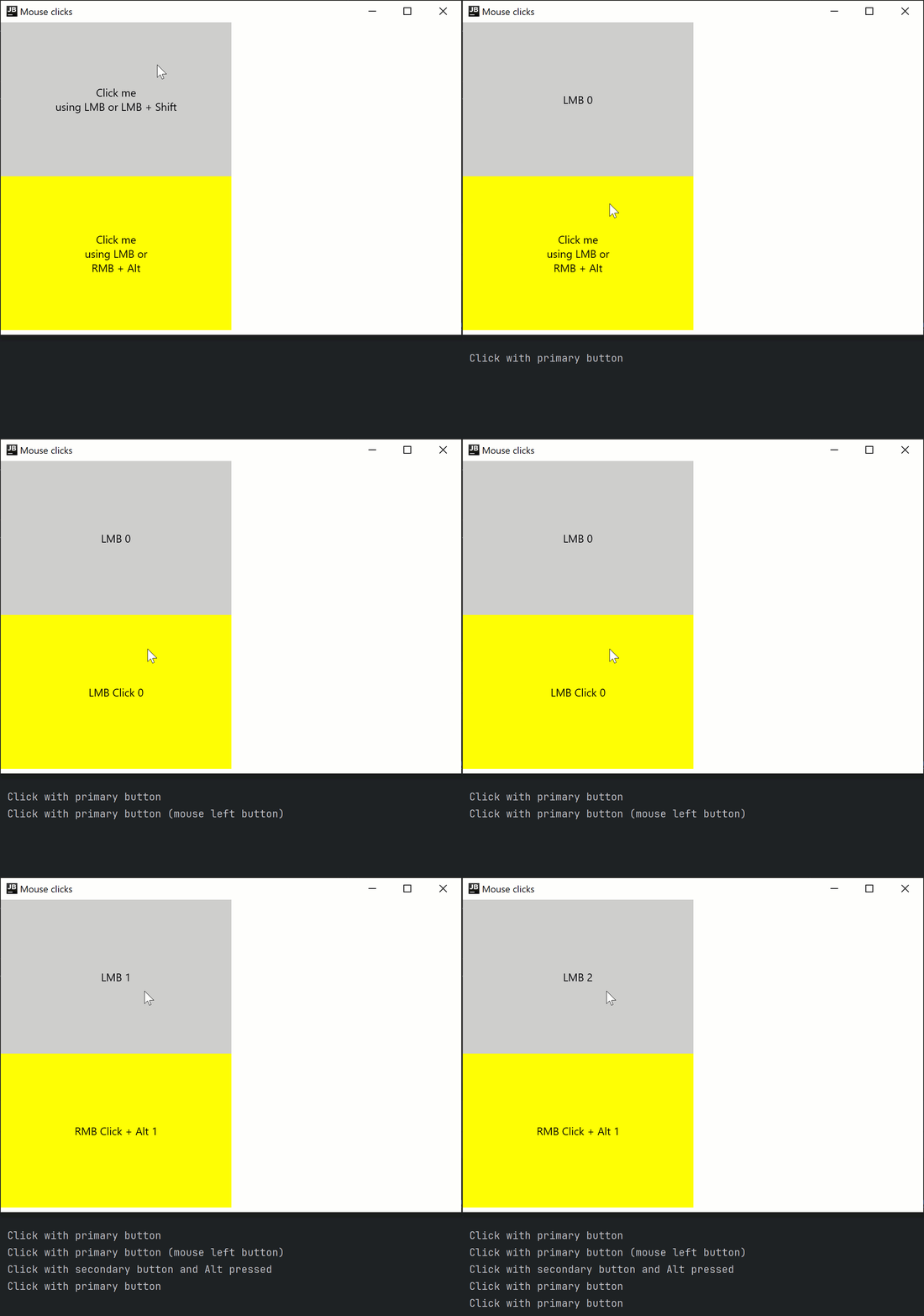
Modifier.onClick은 클릭, 더블 클릭, 롱 클릭에 대한 독립적인 콜백을 제공합니다. 포인터 이벤트로부터 발생하는 클릭만 처리하며, 접근성(accessibility)의 click 이벤트는 기본적으로 처리하지 않습니다.
matcher: PointerMatcher와 keyboardModifiers: PointerKeyboardModifiers.() -> Boolean을 사용하여 특정 포인터 이벤트를 대상으로 하도록 각 onClick을 구성할 수 있습니다.
matcher를 사용하면 어떤 마우스 버튼이 클릭 이벤트를 트리거할지 선택할 수 있습니다.keyboardModifiers를 사용하면 특정 키가 눌려 있는 상태의 포인터 이벤트만 필터링할 수 있습니다.
또한 여러 개의 onClick 수정자를 체이닝하여 매처(matcher)와 키보드 수정 키의 조건에 따라 다양한 클릭을 처리할 수도 있습니다. clickable과 달리 onClick에는 기본 Modifier.indication 및 Modifier.semantics가 없으며, Enter 키를 눌렀을 때 클릭 이벤트가 발생하지 않습니다. 필요한 경우 이러한 수정자를 별도로 추가해야 합니다. 이벤트가 올바르게 전파되도록 하려면 조건 수가 가장 적은 가장 일반적인(generic) onClick 핸들러를 다른 핸들러보다 먼저 선언해야 합니다.
Box(modifier = Modifier.onClick { {...}
import androidx.compose.animation.AnimatedContent
import androidx.compose.foundation.ExperimentalFoundationApi
import androidx.compose.foundation.LocalIndication
import androidx.compose.foundation.PointerMatcher
import androidx.compose.foundation.background
import androidx.compose.foundation.indication
import androidx.compose.foundation.interaction.MutableInteractionSource
import androidx.compose.foundation.layout.Box
import androidx.compose.foundation.layout.Column
import androidx.compose.foundation.layout.size
import androidx.compose.foundation.onClick
import androidx.compose.material.Text
import androidx.compose.runtime.*
import androidx.compose.ui.Alignment
import androidx.compose.ui.Modifier
import androidx.compose.ui.graphics.Color
import androidx.compose.ui.input.pointer.PointerButton
import androidx.compose.ui.input.pointer.isAltPressed
import androidx.compose.ui.input.pointer.isShiftPressed
import androidx.compose.ui.text.style.TextAlign
import androidx.compose.ui.unit.dp
import androidx.compose.ui.window.singleWindowApplication

@OptIn(ExperimentalFoundationApi::class)
fun main() = singleWindowApplication(title = "Mouse clicks") {
    Column {
        var topBoxText by remember { mutableStateOf("Click me\nusing LMB or LMB + Shift") }
        var topBoxCount by remember { mutableIntStateOf(0) }
        // 인터랙션 표시(indication) 없음
        Box(modifier = Modifier
            .size(300.dp, 200.dp)
            .background(Color.LightGray)
            // 추가 조건이 없는 가장 일반적인 클릭 핸들러가 첫 번째로 와야 함
            .onClick {
                // Shift가 눌리지 않은 모든 마우스 왼쪽 버튼 클릭 수신
                println("Click with primary button")
                topBoxText = "LMB ${topBoxCount++}"
            }.onClick(
                keyboardModifiers = { isShiftPressed } // Shift가 눌렸을 때의 클릭만 수용
            ) {
                // Shift가 눌려 있을 때의 모든 마우스 왼쪽 버튼 클릭 수신
                println("Click with primary button and shift pressed")
                topBoxCount++
                topBoxText = "LMB + Shift ${topBoxCount++}"
            }
        ) {
            AnimatedContent(
                targetState = topBoxText,
                modifier = Modifier.align(Alignment.Center)
            ) {
                Text(text = it, textAlign = TextAlign.Center)
            }
        }

        var bottomBoxText by remember { mutableStateOf("Click me\nusing LMB or\nRMB + Alt") }
        var bottomBoxCount by remember { mutableStateOf(0) }
        val interactionSource = remember { MutableInteractionSource() }
        // 인터랙션 표시(indication) 있음
        Box(modifier = Modifier
            .size(300.dp, 200.dp)
            .background(Color.Yellow)
            .onClick(
                enabled = true,
                interactionSource = interactionSource,
                matcher = PointerMatcher.mouse(PointerButton.Secondary), // 마우스 오른쪽 버튼
                keyboardModifiers = { isAltPressed }, // Alt가 눌렸을 때의 클릭만 수용
                onLongClick = { // 선택 사항
                    bottomBoxText = "RMB Long Click + Alt ${bottomBoxCount++}"
                    println("Long Click with secondary button and Alt pressed")
                },
                onDoubleClick = { // 선택 사항
                    bottomBoxText = "RMB Double Click + Alt ${bottomBoxCount++}"
                    println("Double Click with secondary button and Alt pressed")
                },
                onClick = {
                    bottomBoxText = "RMB Click + Alt ${bottomBoxCount++}"
                    println("Click with secondary button and Alt pressed")
                }
            )
            .onClick(interactionSource = interactionSource) { // 기본 매개변수 사용
                bottomBoxText = "LMB Click ${bottomBoxCount++}"
                println("Click with primary button (mouse left button)")
            }
            .indication(interactionSource, LocalIndication.current)
        ) {
            AnimatedContent(
                targetState = bottomBoxText,
                modifier = Modifier.align(Alignment.Center)
            ) {
                Text(text = it, textAlign = TextAlign.Center)
            }
        }
    }
}
실험적 onDrag 수정자
onDrag 수정자는 실험적(Experimental) 기능이며 데스크톱 프로젝트에서만 지원됩니다. 사용하려면 옵트인(opt-in)이 필요하며(아래 세부 정보 참조), 평가 목적으로만 사용해야 합니다.
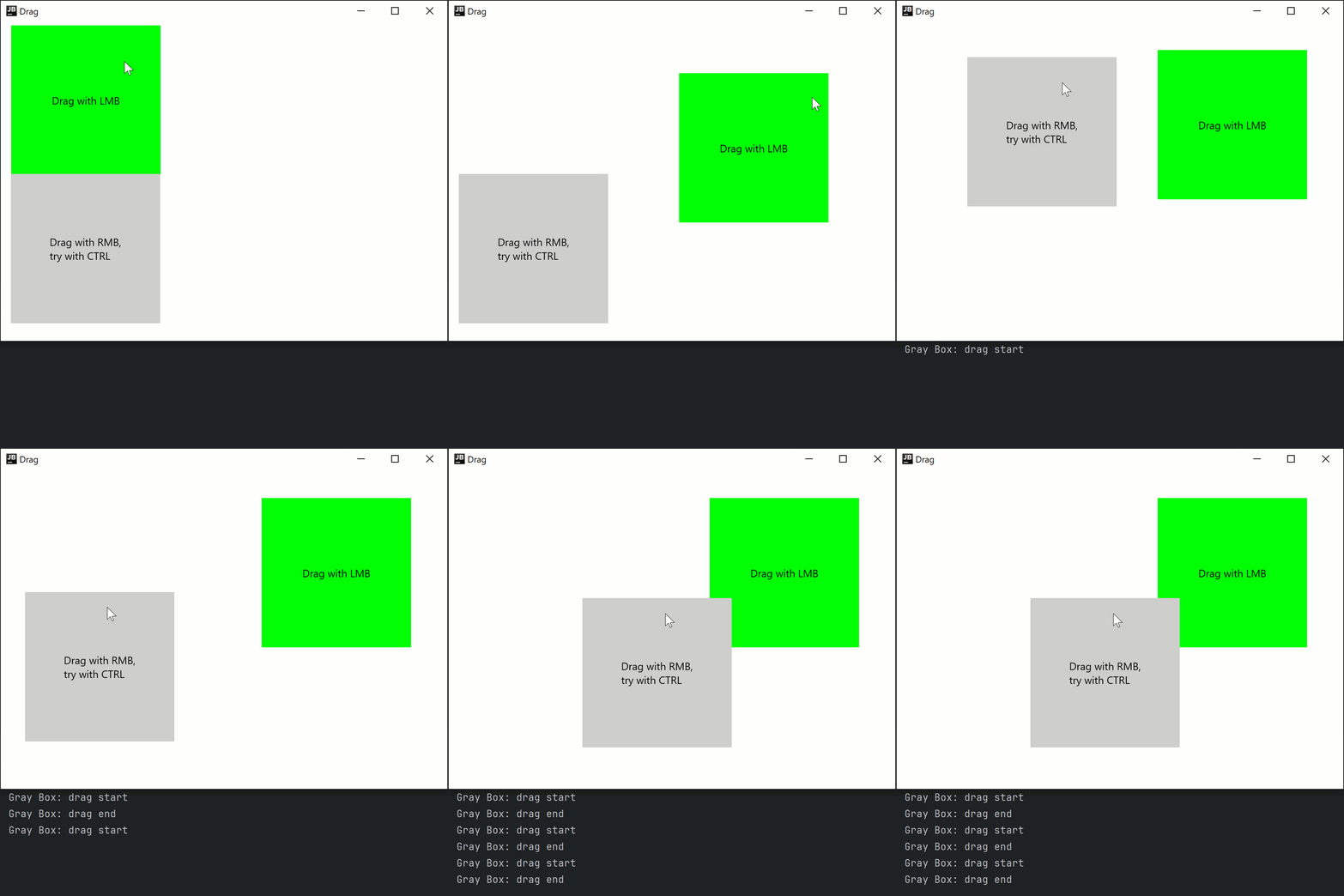
Modifier.onDrag를 사용하면 matcher: PointerMatcher를 통해 드래그를 트리거할 포인터를 지정할 수 있습니다. onClick과 마찬가지로 여러 개의 onDrag 수정자를 함께 체이닝할 수 있습니다.
키 입력이 드래그 동작을 변경할 수 있는 경우 LocalWindowInfo.current.keyboardModifier를 통해 키보드 수정 키의 상태를 확인할 수도 있습니다. 예를 들어 일반 드래그로는 아이템을 이동하고, Ctrl 키를 누른 채 드래그하면 아이템을 복사/붙여넣기하도록 할 수 있습니다.
다음 코드 예제는 마우스 왼쪽 버튼과 오른쪽 버튼으로 트리거되는 드래그 이벤트 및 키보드 입력이 결합된 드래그 이벤트를 처리하는 방법을 보여줍니다.
Box(modifier = Modifier.onDrag { {...}
import androidx.compose.foundation.ExperimentalFoundationApi
import androidx.compose.foundation.PointerMatcher
import androidx.compose.foundation.background
import androidx.compose.foundation.gestures.onDrag
import androidx.compose.foundation.layout.Box
import androidx.compose.foundation.layout.Column
import androidx.compose.foundation.layout.offset
import androidx.compose.foundation.layout.size
import androidx.compose.material.Text
import androidx.compose.runtime.getValue
import androidx.compose.runtime.mutableStateOf
import androidx.compose.runtime.remember
import androidx.compose.runtime.setValue
import androidx.compose.ui.Alignment
import androidx.compose.ui.Modifier
import androidx.compose.ui.geometry.Offset
import androidx.compose.ui.graphics.Color
import androidx.compose.ui.input.pointer.PointerButton
import androidx.compose.ui.input.pointer.isCtrlPressed
import androidx.compose.ui.platform.LocalWindowInfo
import androidx.compose.ui.unit.IntOffset
import androidx.compose.ui.unit.dp
import androidx.compose.ui.window.singleWindowApplication

@OptIn(ExperimentalFoundationApi::class)
fun main() = singleWindowApplication(title = "Drag") {
    val windowInfo = LocalWindowInfo.current

    Column {
        var topBoxOffset by remember { mutableStateOf(Offset(0f, 0f)) }

        Box(modifier = Modifier
            .offset {
                IntOffset(topBoxOffset.x.toInt(), topBoxOffset.y.toInt())
            }
            .size(200.dp)
            .background(Color.Green)
            .onDrag { // 기본값: enabled = true, matcher = PointerMatcher.Primary (마우스 왼쪽 버튼)
                topBoxOffset += it
            }
        ) {
            Text(text = "Drag with LMB", modifier = Modifier.align(Alignment.Center))
        }

        var bottomBoxOffset by remember { mutableStateOf(Offset(0f, 0f)) }

        Box(modifier = Modifier
            .offset {
                IntOffset(bottomBoxOffset.x.toInt(), bottomBoxOffset.y.toInt())
            }
            .size(200.dp)
            .background(Color.LightGray)
            .onDrag(
                matcher = PointerMatcher.mouse(PointerButton.Secondary), // 마우스 오른쪽 버튼
                onDragStart = {
                    println("Gray Box: drag start")
                },
                onDragEnd = {
                    println("Gray Box: drag end")
                }
            ) {
                val keyboardModifiers = windowInfo.keyboardModifiers
                bottomBoxOffset += if (keyboardModifiers.isCtrlPressed) it * 2f else it
            }
        ) {
            Text(
                text = "Drag with RMB,\ntry with CTRL",
                modifier = Modifier.align(Alignment.Center)
            )
        }
    }
}
수정자를 사용하지 않고 suspend fun PointerInputScope.detectDragGestures를 사용하여 드래그를 처리하는 방법도 있습니다.
Modifier.pointerInput(Unit) { detectDragGestures(matcher = PointerMatcher.Primary) {...}
import androidx.compose.foundation.ExperimentalFoundationApi
import androidx.compose.foundation.PointerMatcher
import androidx.compose.foundation.background
import androidx.compose.foundation.gestures.detectDragGestures
import androidx.compose.foundation.layout.Box
import androidx.compose.foundation.layout.offset
import androidx.compose.foundation.layout.size
import androidx.compose.material.Text
import androidx.compose.runtime.getValue
import androidx.compose.runtime.mutableStateOf
import androidx.compose.runtime.remember
import androidx.compose.runtime.setValue
import androidx.compose.ui.Alignment
import androidx.compose.ui.Modifier
import androidx.compose.ui.geometry.Offset
import androidx.compose.ui.graphics.Color
import androidx.compose.ui.input.pointer.pointerInput
import androidx.compose.ui.unit.IntOffset
import androidx.compose.ui.unit.dp
import androidx.compose.ui.window.singleWindowApplication

@OptIn(ExperimentalFoundationApi::class)
fun main() = singleWindowApplication(title = "Drag") {
    var topBoxOffset by remember { mutableStateOf(Offset(0f, 0f)) }

    Box(modifier = Modifier
        .offset {
            IntOffset(topBoxOffset.x.toInt(), topBoxOffset.y.toInt())
        }
        .size(200.dp)
        .background(Color.Green)
        .pointerInput(Unit) {
            detectDragGestures(
                matcher = PointerMatcher.Primary
            ) {
                topBoxOffset += it
            }
        }
    ) {
        Text(text = "Drag with LMB", modifier = Modifier.align(Alignment.Center))
    }
}
Swing 상호 운용성을 통한 로우 AWT 이벤트 접근
onPointerEvent 수정자는 실험적(Experimental) 기능입니다. 사용하려면 옵트인(opt-in)이 필요하며(아래 세부 정보 참조), 평가 목적으로만 사용해야 합니다. 안정화(Stable)된 API를 확인하려면 Modifier.pointerInput을 참조하세요.
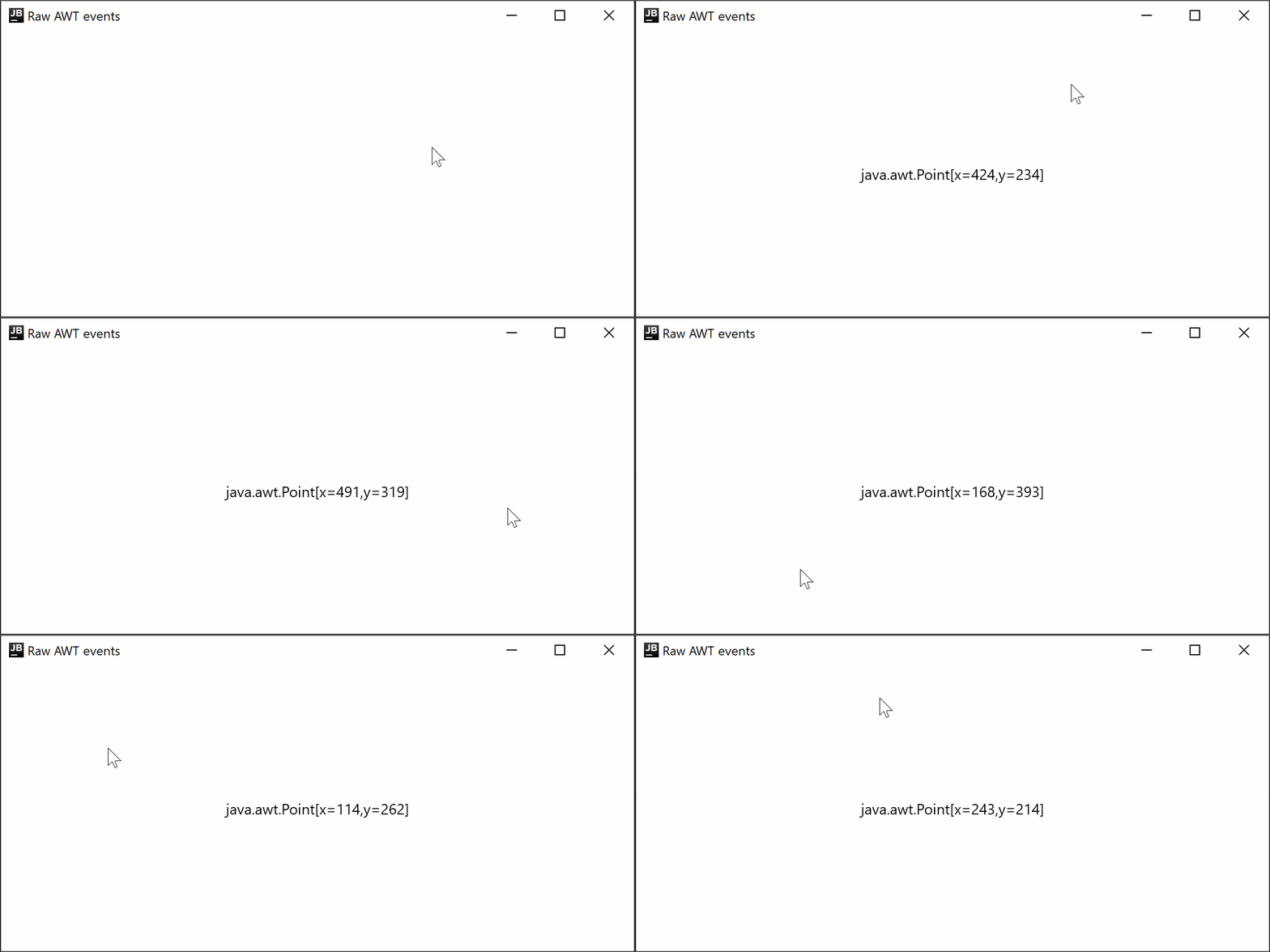
데스크톱용 Compose Multiplatform은 내부적으로 Swing을 사용하므로 로우(raw) AWT 이벤트에 접근할 수 있습니다.
Box(Modifier.onPointerEvent(PointerEventType.Press) { text = {...}
import androidx.compose.foundation.layout.Box
import androidx.compose.foundation.layout.fillMaxSize
import androidx.compose.material.Text
import androidx.compose.runtime.getValue
import androidx.compose.runtime.mutableStateOf
import androidx.compose.runtime.remember
import androidx.compose.runtime.setValue
import androidx.compose.ui.Alignment
import androidx.compose.ui.ExperimentalComposeUiApi
import androidx.compose.ui.Modifier
import androidx.compose.ui.awt.awtEventOrNull
import androidx.compose.ui.input.pointer.PointerEventType
import androidx.compose.ui.input.pointer.onPointerEvent
import androidx.compose.ui.window.singleWindowApplication

@OptIn(ExperimentalComposeUiApi::class)
fun main() = singleWindowApplication(title = "Raw AWT events") {
    var text by remember { mutableStateOf("") }

    Box(
        Modifier
            .fillMaxSize()
            .onPointerEvent(PointerEventType.Press) {
                text = it.awtEventOrNull?.locationOnScreen?.toString().orEmpty()
            },
        contentAlignment = Alignment.Center
    ) {
        Text(text)
    }
}
pointerInput을 통해 공통 코드에서 로우 이벤트 감지하기
위의 코드 조각에서는 포인터 이벤트 유형을 구독하는 헬퍼 함수인 Modifier.onPointerEvent 함수를 사용했습니다. 이는 Modifier.pointerInput 함수의 새롭고 간결한 형태입니다. 현재 실험적이며 데스크톱 전용이므로 공통(common) 코드에서는 사용할 수 없습니다.
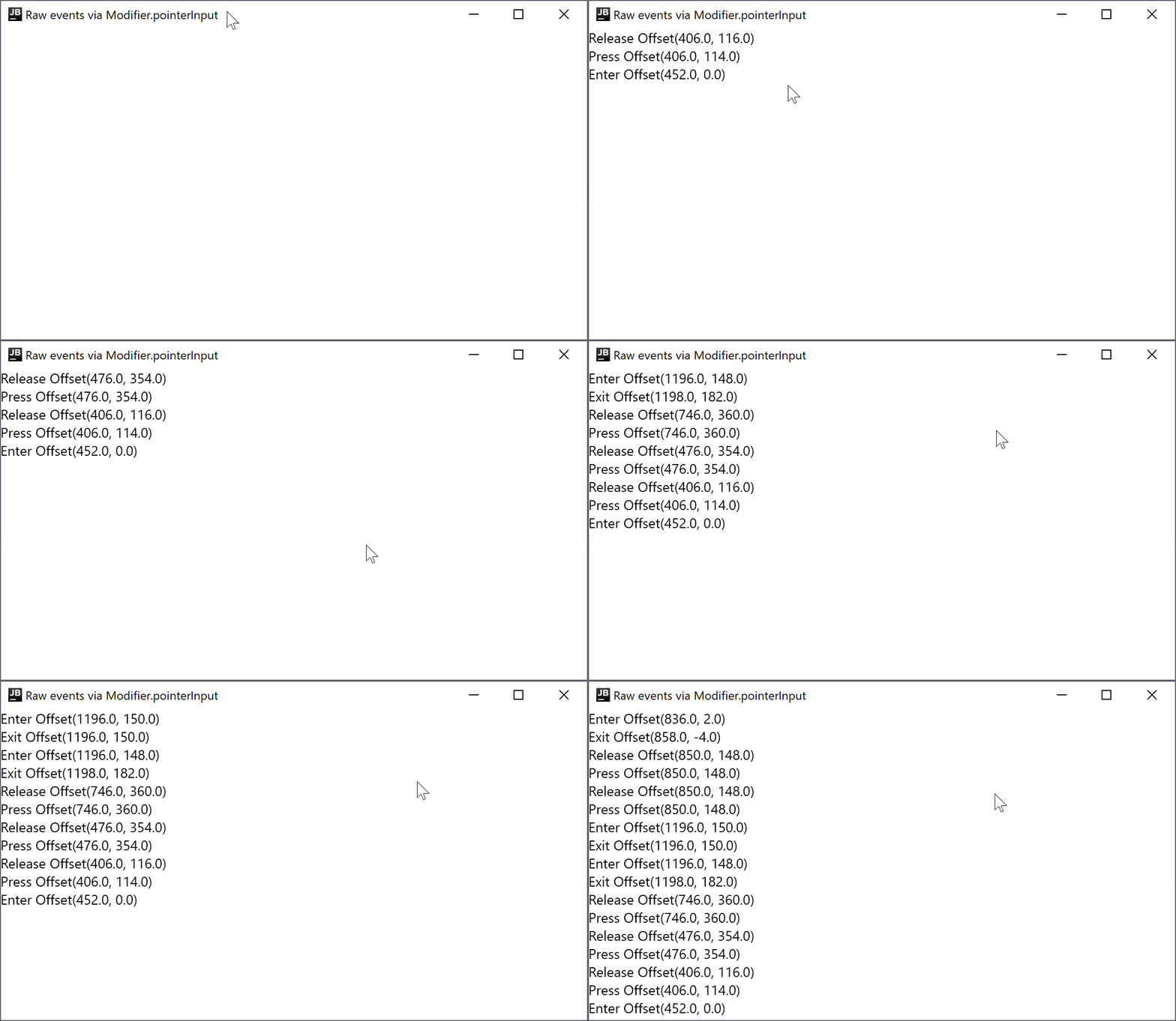
공통 코드에서 이벤트를 구독해야 하거나 안정화된 API가 필요한 경우에는 Modifier.pointerInput 함수를 사용할 수 있습니다.
Column(Modifier.pointerInput(Unit) { awaitPointerEventScope { {...}
import androidx.compose.foundation.layout.Column
import androidx.compose.foundation.layout.fillMaxSize
import androidx.compose.material.Text
import androidx.compose.runtime.mutableStateListOf
import androidx.compose.runtime.remember
import androidx.compose.ui.Modifier
import androidx.compose.ui.input.pointer.PointerEventType
import androidx.compose.ui.input.pointer.pointerInput
import androidx.compose.ui.window.singleWindowApplication

fun main() = singleWindowApplication(title = "Raw events via Modifier.pointerInput") {
    val list = remember { mutableStateListOf<String>() }

    Column(
        Modifier
            .fillMaxSize()
            .pointerInput(Unit) {
                awaitPointerEventScope {
                    while (true) {
                        val event = awaitPointerEvent()
                        val position = event.changes.first().position
                        // 재배치(relayout)될 때마다 Compose에서 합성 Move 이벤트를 전송하므로,
                        // 이벤트 스팸을 방지하기 위해 이를 건너뜁니다.
                        if (event.type != PointerEventType.Move) {
                            list.add(0, "${event.type} $position")
                        }
                    }
                }
            },
    ) {
        for (item in list.take(20)) {
            Text(item)
        }
    }
}
다음 단계
기타 데스크톱 컴포넌트에 대한 튜토리얼을 살펴보세요.